
Import your first hands
The step-by-step guide to importing hand histories and starting to analyze.

Gandalf
Co-founder of Poker Sciences

Now that you know what a tracker is and how it works behind the scenes, let's get practical: how to import your hands.

1. Supported rooms
The tracker currently supports Spins from 8 rooms: Winamax, PokerStars, Betclic, GGPoker, iPoker, Unibet, PartyPoker and ACR. More rooms will be added later on.
Your room isn't on the list? Write to us (on Discord, for example) and we'll look into adding it.
For each room, you'll need to get hold of the hand history files. The format and the number of files vary from one room to another:
| Room | Format | Files to import |
|---|---|---|
| Winamax | TXT | Hands + Summary |
| PokerStars | TXT | Hands + Summary |
| Betclic | TXT | Hands (all-in-one) |
| GGPoker | TXT | Hands + Summary |
| iPoker | XML | Hands (all-in-one) |
| Unibet | TXT | Hands only |
| PartyPoker | TXT | Hands (all-in-one) |
| ACR | TXT | Hands + Summary |
The tracker automatically recognizes the format of each room from your files. It can even read PokerTracker 4 and Hand2Note exports, and any file it doesn't recognize is simply ignored: no risk to your data.
2. Live import
This is the most convenient mode day to day, and above all it's fully automatic.
First step: find the folder where your room saves your hand histories. On Winamax, for instance, it's usually inside the Winamax folder, in a "history" subfolder.
Since version 2 of Poker Spin Tracker, the hand history folder is detected automatically for most rooms, notably Winamax, Unibet and PokerStars. So you generally don't need to go looking for it yourself.
If the tracker detects your folder, simply click Watch next to the room in question. Otherwise, click Choose the hand history folder to select it yourself.
Monitoring switches on automatically as soon as the folder is added. You can monitor several folders if you play on several rooms.
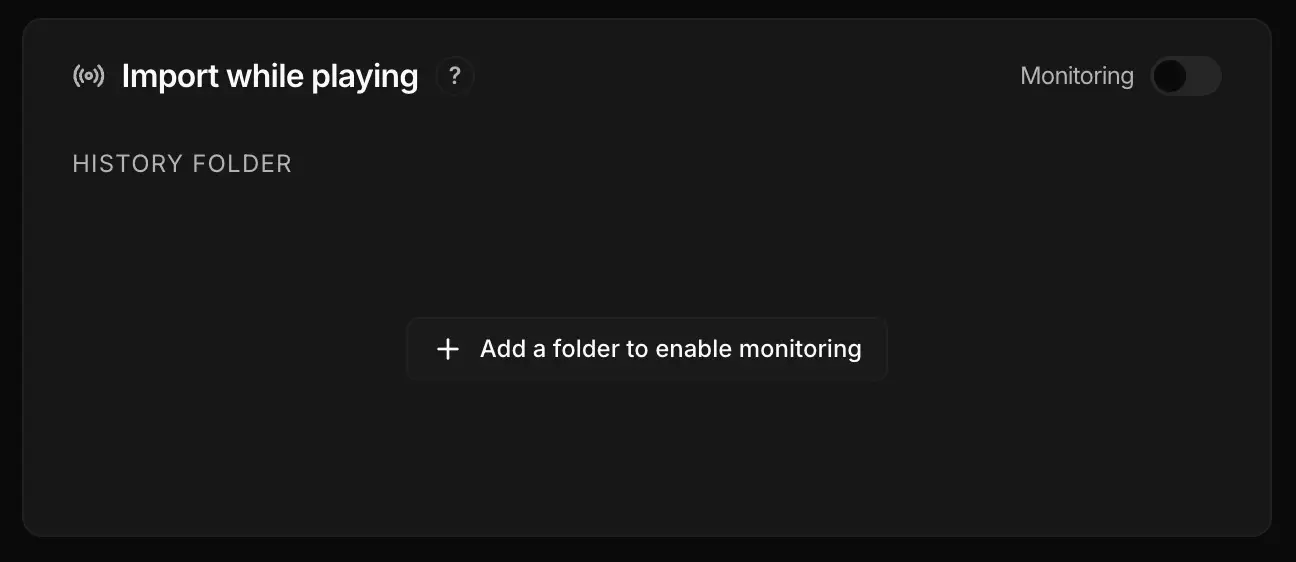
And that's it: nothing else to do. From your very first Spin, the tracker reads the folder in real time and imports your hands automatically. The Copilot shows up to follow you while you play.
The live session stops on its own after 5 minutes of inactivity (no new hand detected). You can also end it manually: you then get the full session summary (tournaments, profit, CEV, field composition...).
Poker Spin Tracker does need to stay open while you play, though, to pick up your files live. If you played while the tracker was closed, no worries: you can always import those files later thanks to the manual import, covered below.
Live import is only possible with rooms that write their histories in real time: Winamax, PokerStars, Unibet and the iPoker network. For the others (GGPoker, Betclic, ACR...), use the manual import below.
3. Manual import
Manual import is handy for importing an existing history or one-off files. Three options:
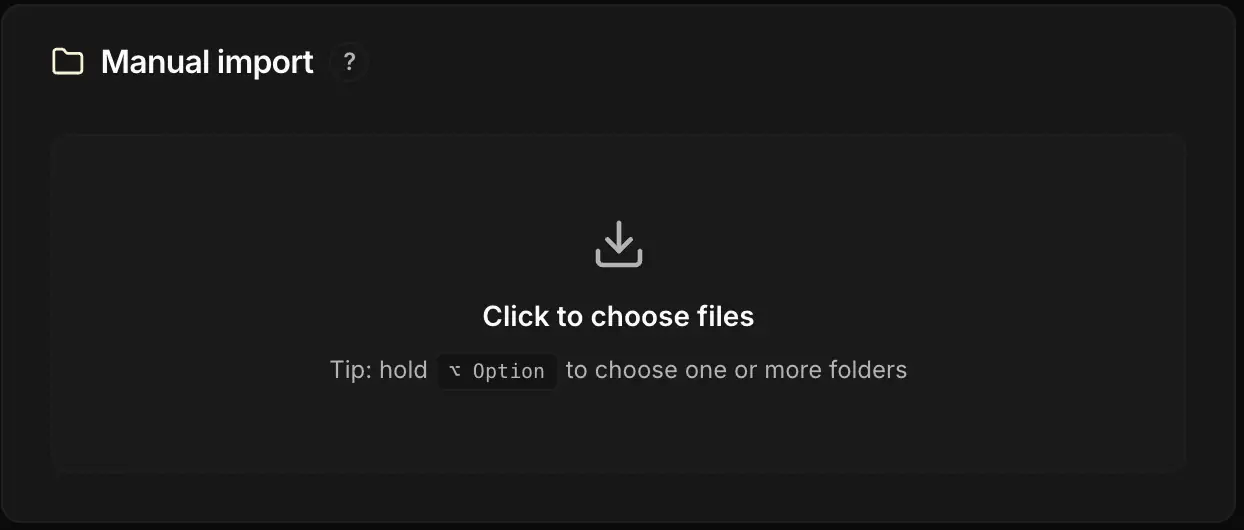
- Drag and drop files or folders straight into the import area
- Click to open the file picker
- Option (⌥) + click on Mac (Alt + click on Windows) to open the folder picker, and import all their contents in one go
You can import several files or several folders at once. When a folder is selected, the tracker explores the subfolders and handles each batch separately.
For big imports, compress your files into a .zip before importing them. The tracker can read them directly, and it's far quicker than importing files one by one.
Manual import is therefore perfect for importing a large history (several months or years of play). Duplicates are detected automatically, so there's no risk of importing the same hands twice.
4. Room specifics
A few specifics worth knowing, depending on the room:
GGPoker: hand history files are anonymized. Each opponent's screen name changes from one tournament to the next.
So there's no way to follow a player from one tournament to another, or to classify them as Fish or Reg. On GGPoker, your opponents therefore get the Unknown tag.
Betclic: it used to be possible to run only one export per day. The room now allows four per day.
5. Import history
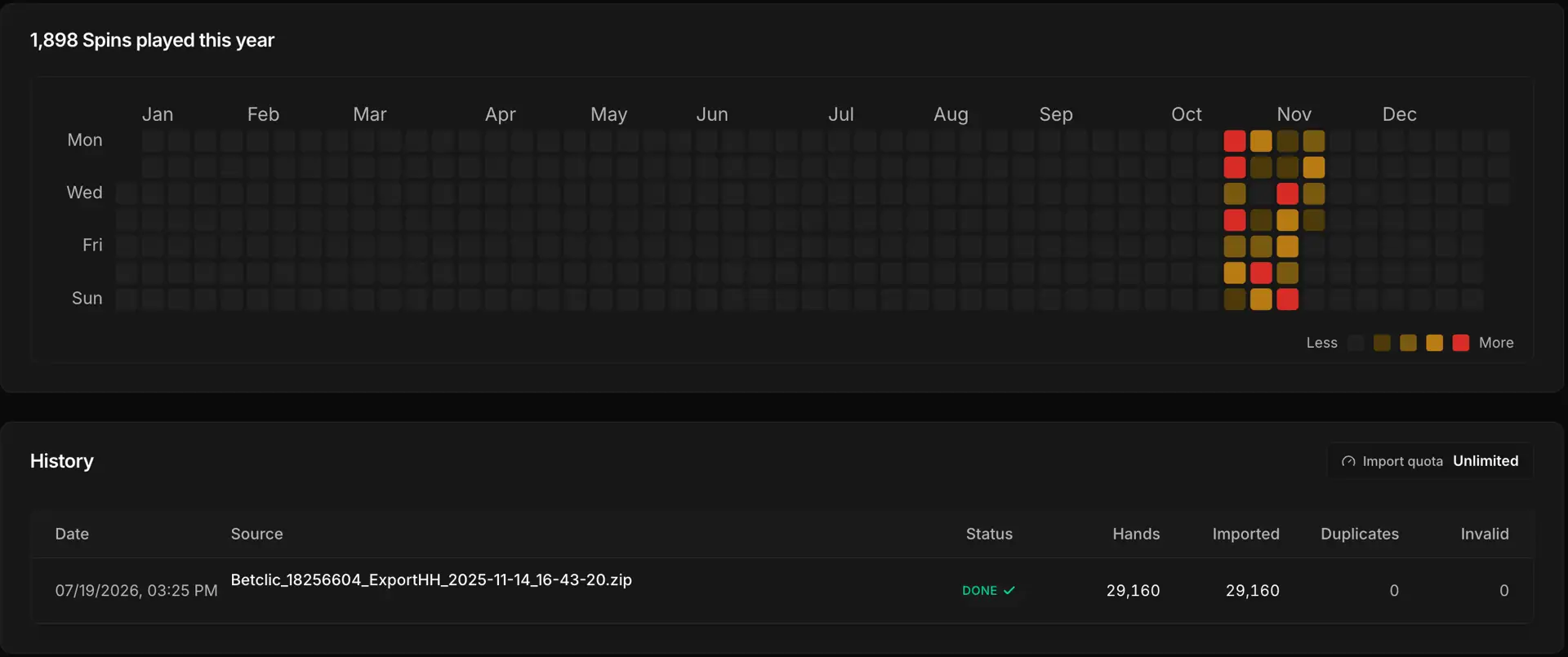
The import page also has a history area that lets you view your activity over the year.
The heatmap at the top shows the days you played the most. Each cell represents one day, and the color indicates the volume of Spins: the redder the cell, the more you played that day.
It's an excellent way to see at a glance how your sessions are spread across the year.
Below it, the history table lists all your imports with the details of each one: date, source file, status, number of hands, imported hands, duplicates and invalid hands.
You can click on a row in the table to display the matching import summary again.
If you haven't imported any hands yet, now is the time to get started! Even a small file is enough to begin exploring the tracker.
Key takeaways
• The tracker supports 8 rooms (Winamax, PokerStars, Betclic, GGPoker, iPoker, Unibet, PartyPoker, ACR). Write to us if yours is missing
• Live import is automatic: add a monitored folder, and play. The session starts and stops all by itself (5 minutes of inactivity)
• Manual import is there for existing histories: drag and drop, file or folder selection. Remember the .zip for big imports
• The tracker recognizes each room's format automatically