Quick tour of the tracker
The three views of the software (Tracker, Study, GTO) and the 5 sections of the Tracker view, one by one.

Gandalf
Co-founder of Poker Sciences
You now know what a tracker is and how it works. Time for the guided tour of the interface.
First thing to get used to: right at the top of the sidebar, on the left, three views organize the software. Their roles are completely different.
Tracker: the view that analyzes your data (your results, your opponents, your leaks). That's the one we're touring in this chapter.
Study: the view for learning (reference charts, Strategy Guides, Trainer...). That's where the content of the Packs lives.
GTO: a solver, coming soon. It will provide solutions and let you compute your own against your opponents. This view will only appear in your sidebar once it's released.
In this chapter, we stay in the Tracker view. It's split into 5 sections, all reachable from the sidebar:
The goal isn't to explain everything in detail, but to show you what's there and make you want to explore. Each section will be broken down in its own dedicated module.
1. Dashboard
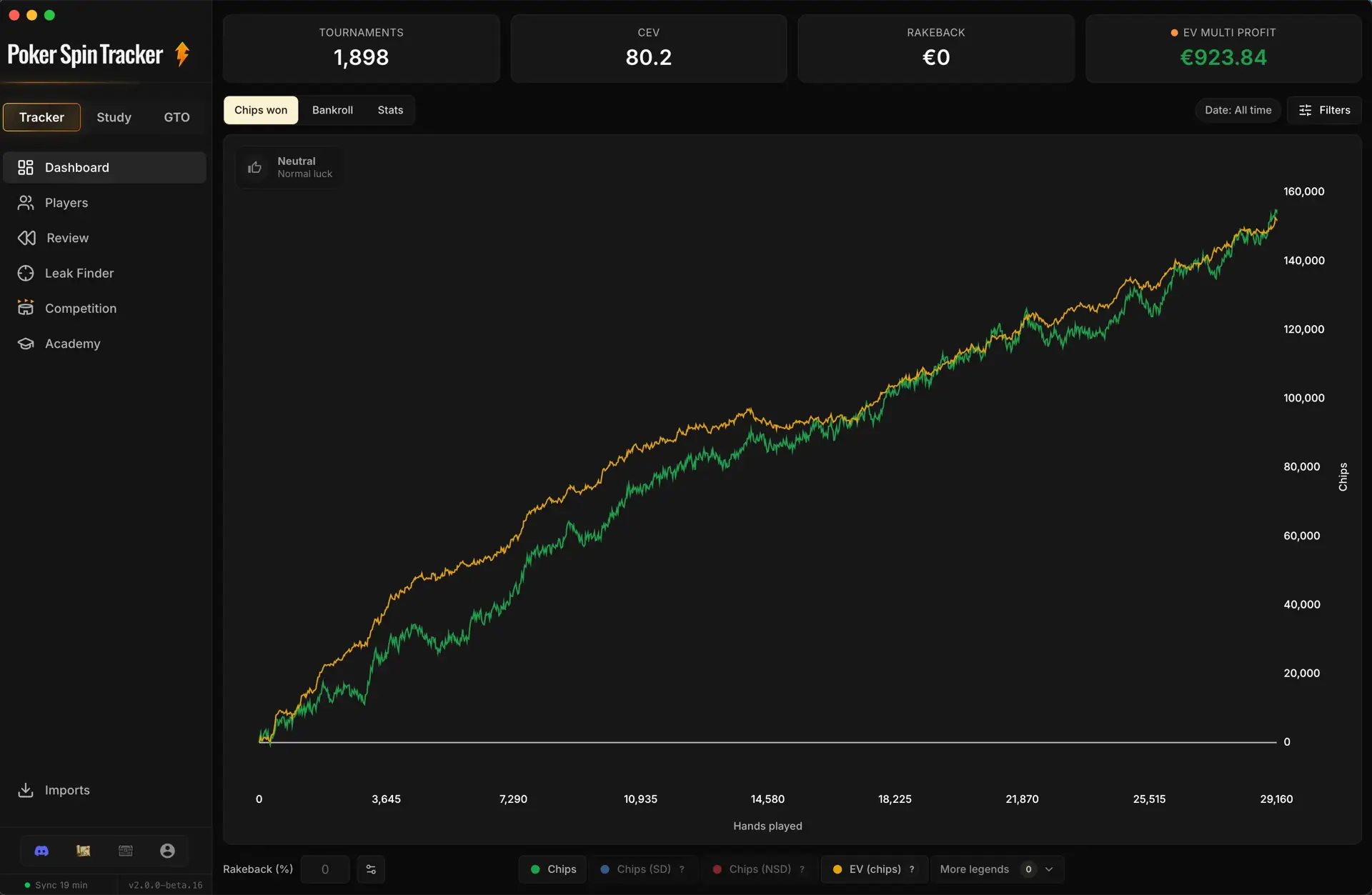
This is the home page of the Tracker view. At the top, the 4 essential KPIs (tournaments, CEV, rakeback, profit); below, the content is split into three tabs.
The Chips won tab displays, among other things, your chip EV curve, "EV (chips)", which is used to compute your CEV. It's your performance in chips, regardless of luck on all-in pots.
We'll come back to this curve and to CEV itself in detail in the upcoming chapters.
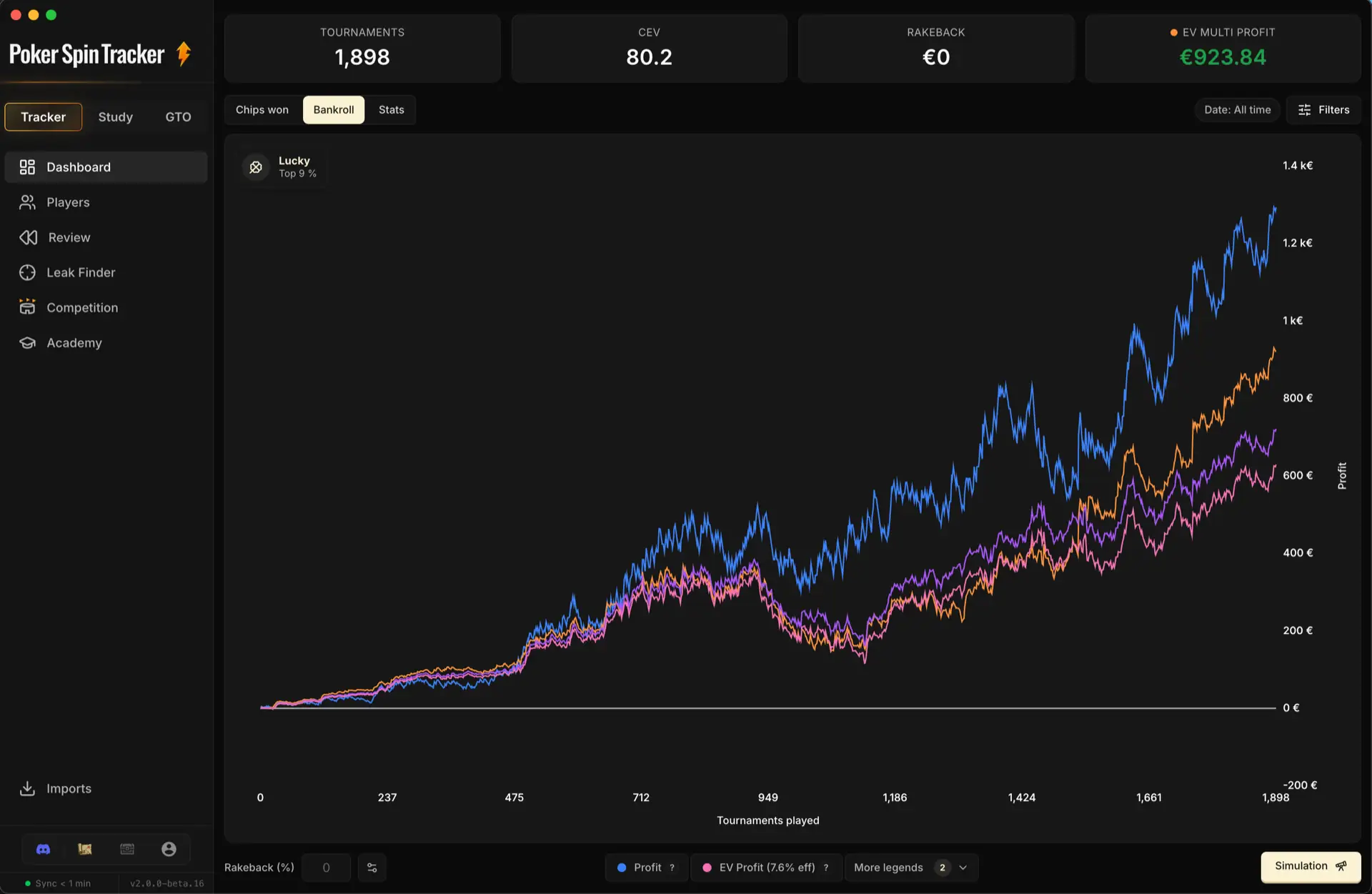
The Bankroll tab shows how your winnings evolve in euros, with the two fundamental curves: Profit and Effective EV Profit.
You can also display the secondary curves (less important): EV Multi Profit and EV Profit.
The Stats tab gives access to the summary metrics: average buy-in, play time, Spins/h, ROI, profit per hour, your detailed results by buy-in, your cEV by table profile, and many more.
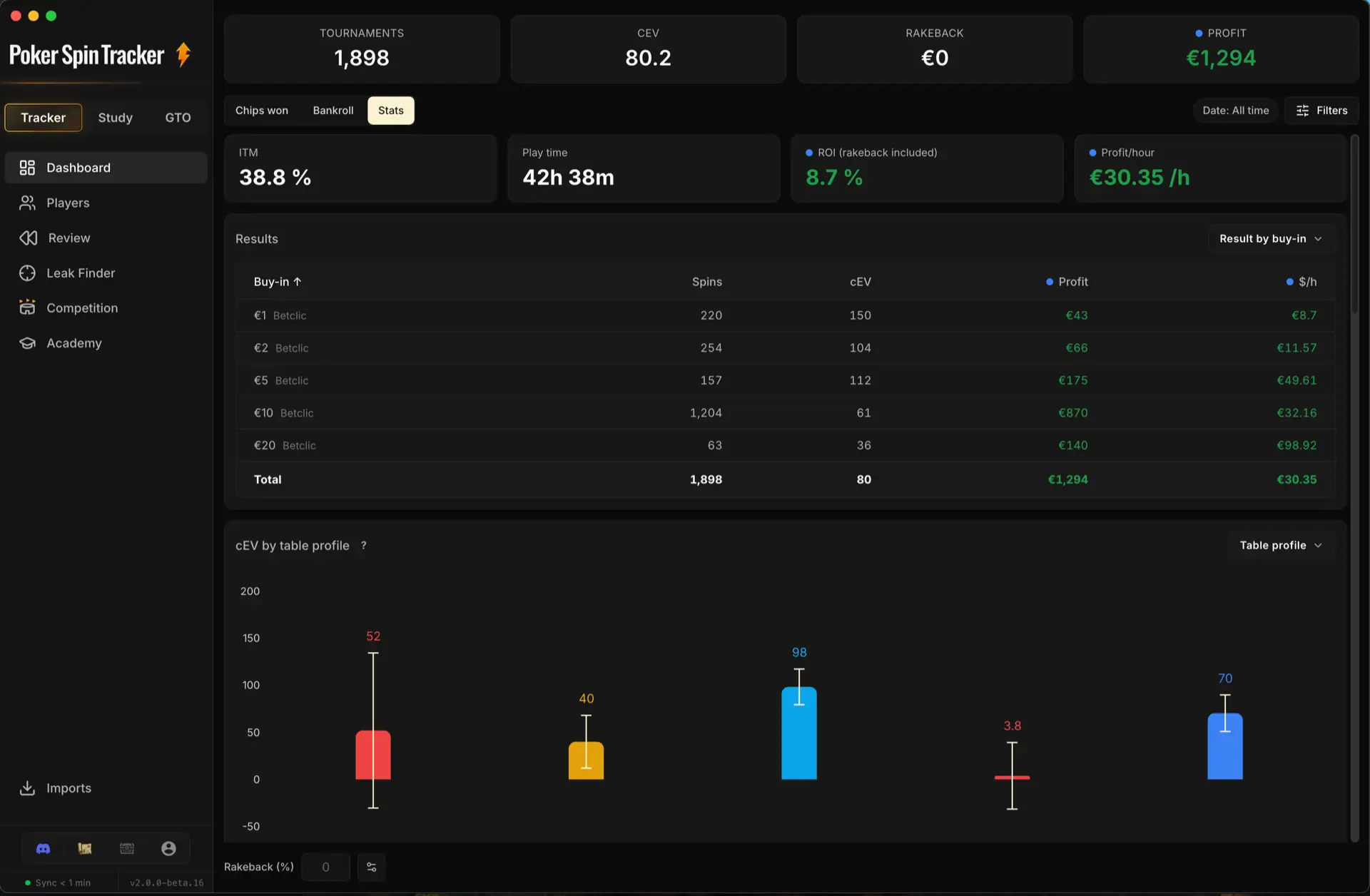
The Dashboard will be the heart of Module 2. Every element will be decoded in detail, and you'll learn to read what it means for your game.
2. Players
The Players section lists every opponent you've faced. The tracker sorts each one as Fish (recreational) or Reg (regular), and you can stick your own, more granular tags on them (Loose Passive, Nits, Tight Aggressive, Degens...).
For each player, you see at a glance the number of hands played against them, their CEV HU and their CEV, as well as the last time you ran into them. Filters at the top isolate a category or a tag in one click.
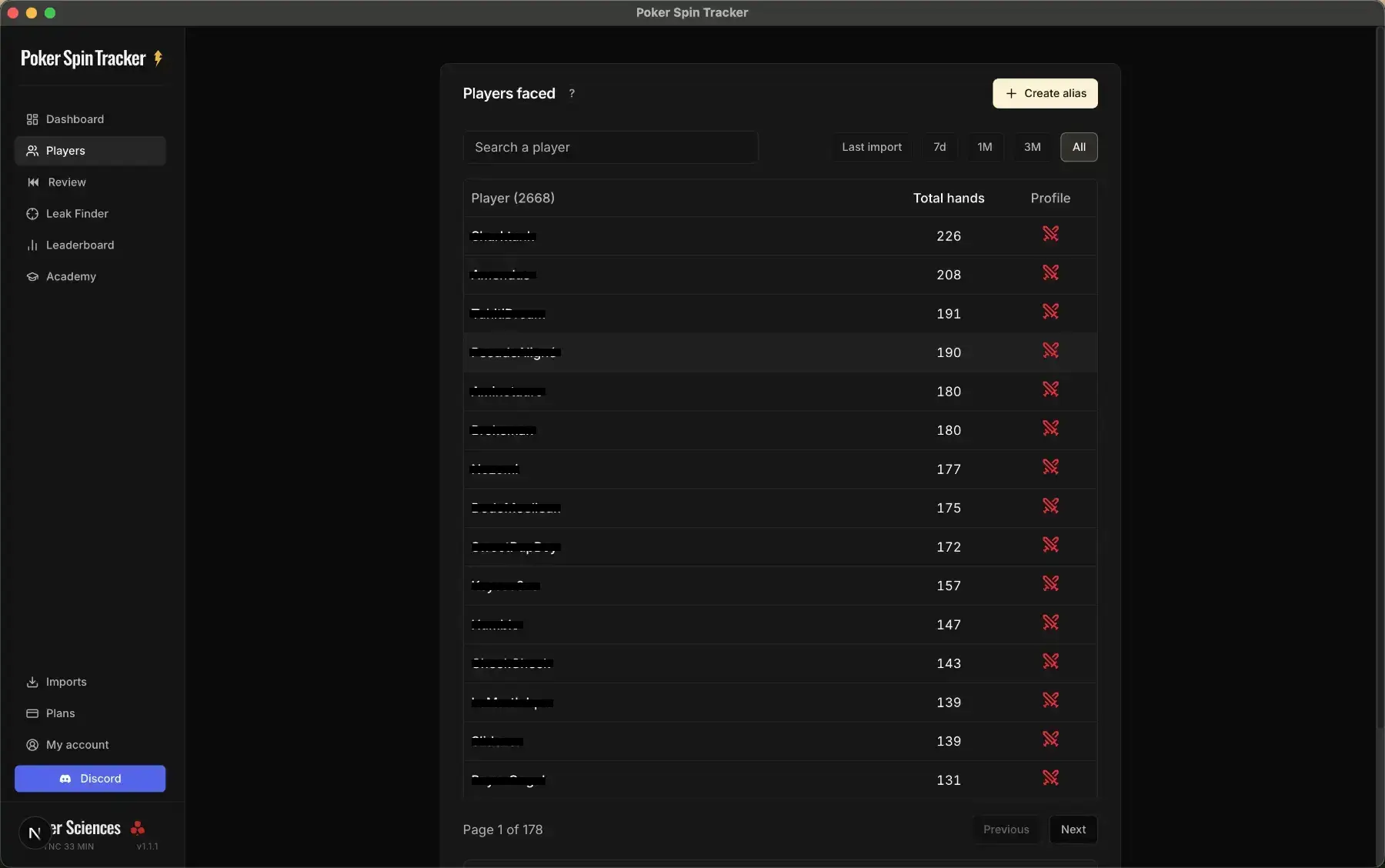
The page has four tabs: Players (the list), Tags (your custom categories), Aliases (to group several screen names belonging to the same player) and HUD (the heads-up display during your sessions). And right at the bottom, Table quality sums up how soft your tables are (the share of fish), overall, by day and by time slot.
This section will be broken down in depth in Module 8.
3. Review
The Review section lets you go back over the hands you've played with a visual replayer. You can navigate hand by hand, action by action, see the cards, the stacks, the opponents' profiles, and the full action history.
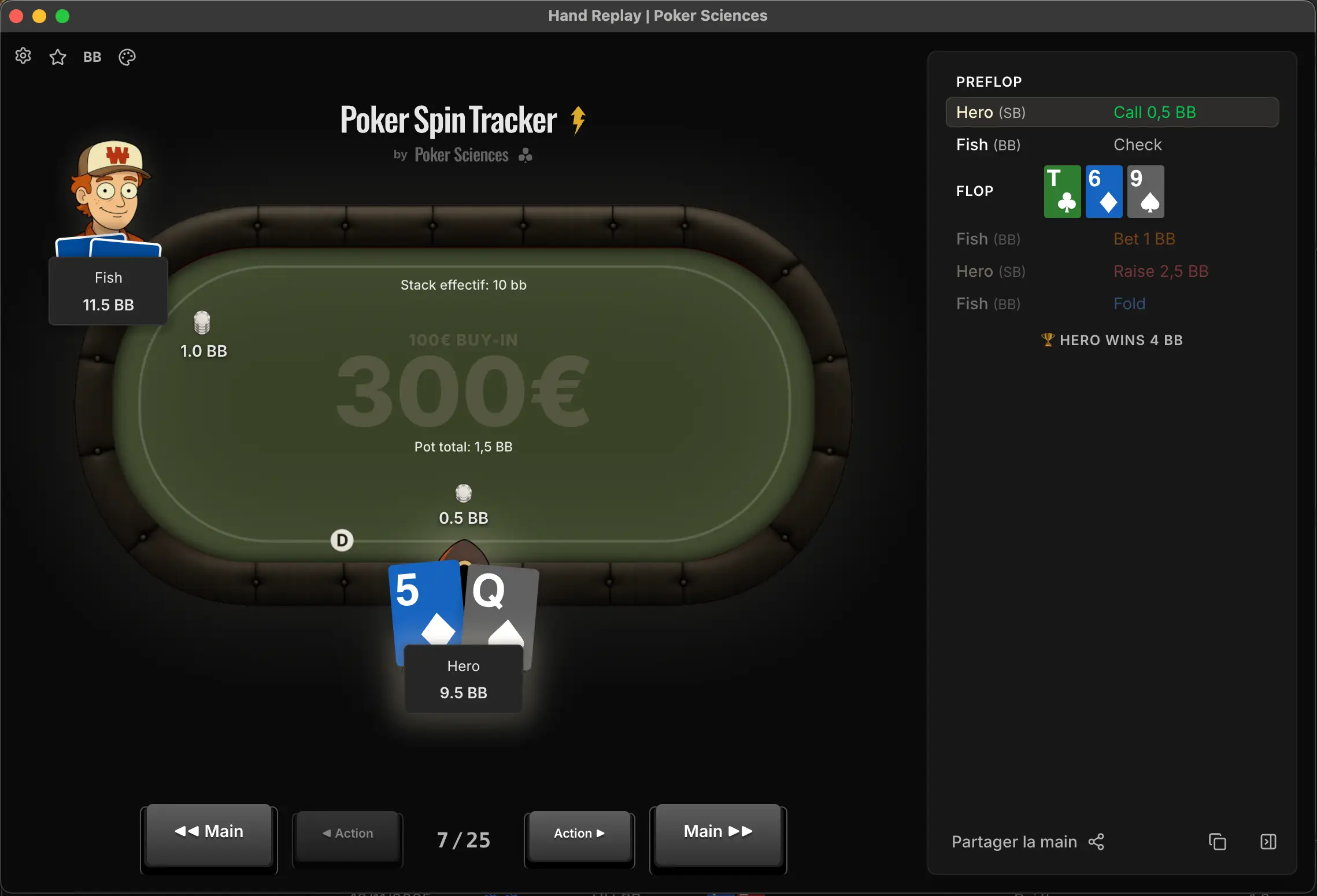
Module 5 will be entirely devoted to Review. You'll learn to use the filters and the replayer to pinpoint your mistakes.
4. Leak Finder
The Leak Finder section is probably the most powerful tool in the tracker. It digs out your general, preflop or postflop leaks, in your own game as well as in your opponents', situation by situation. It shows exactly where you drift away from what you should be doing.
Module 6 will teach you to use the Leak Finder to identify and fix your deviations.
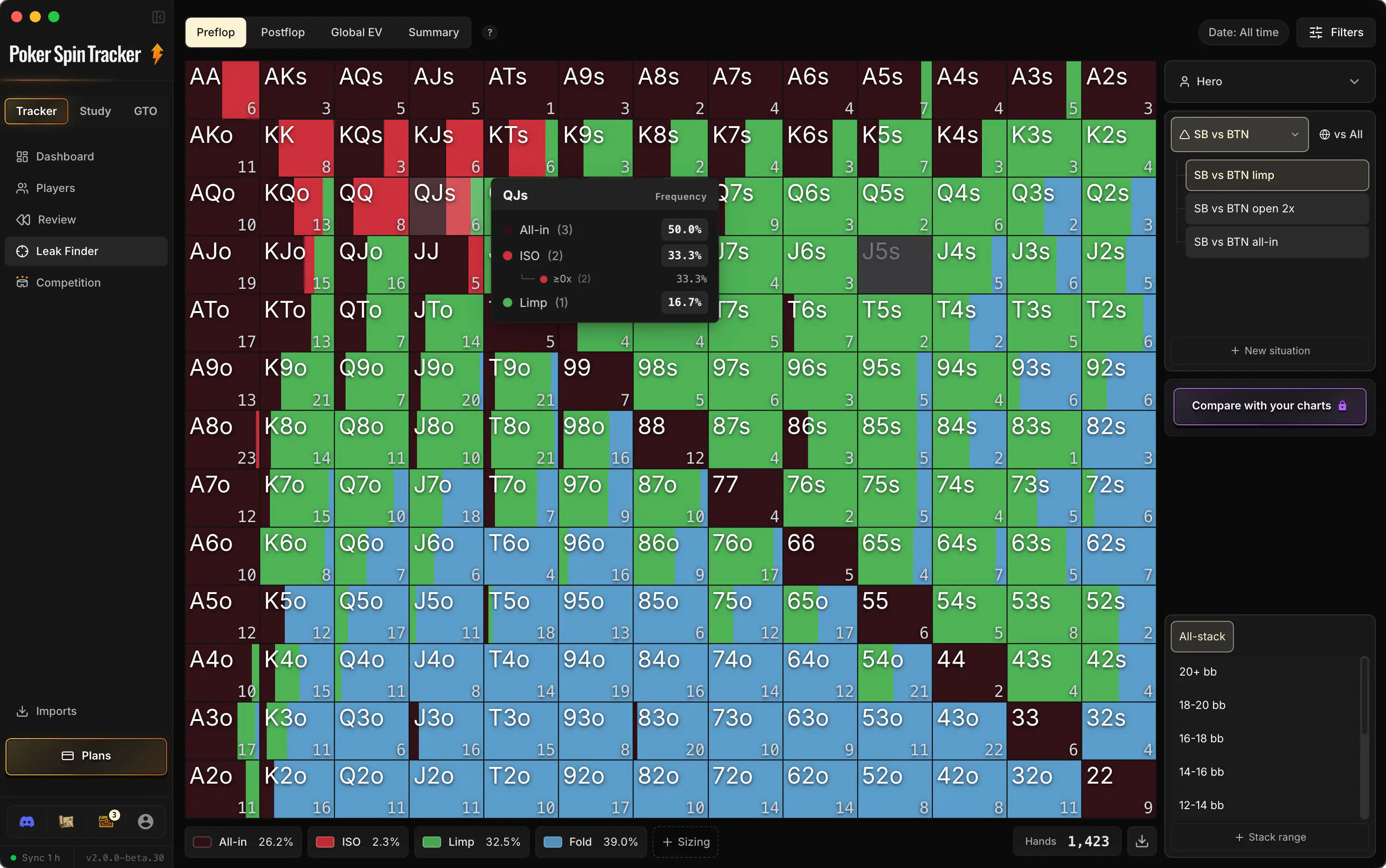
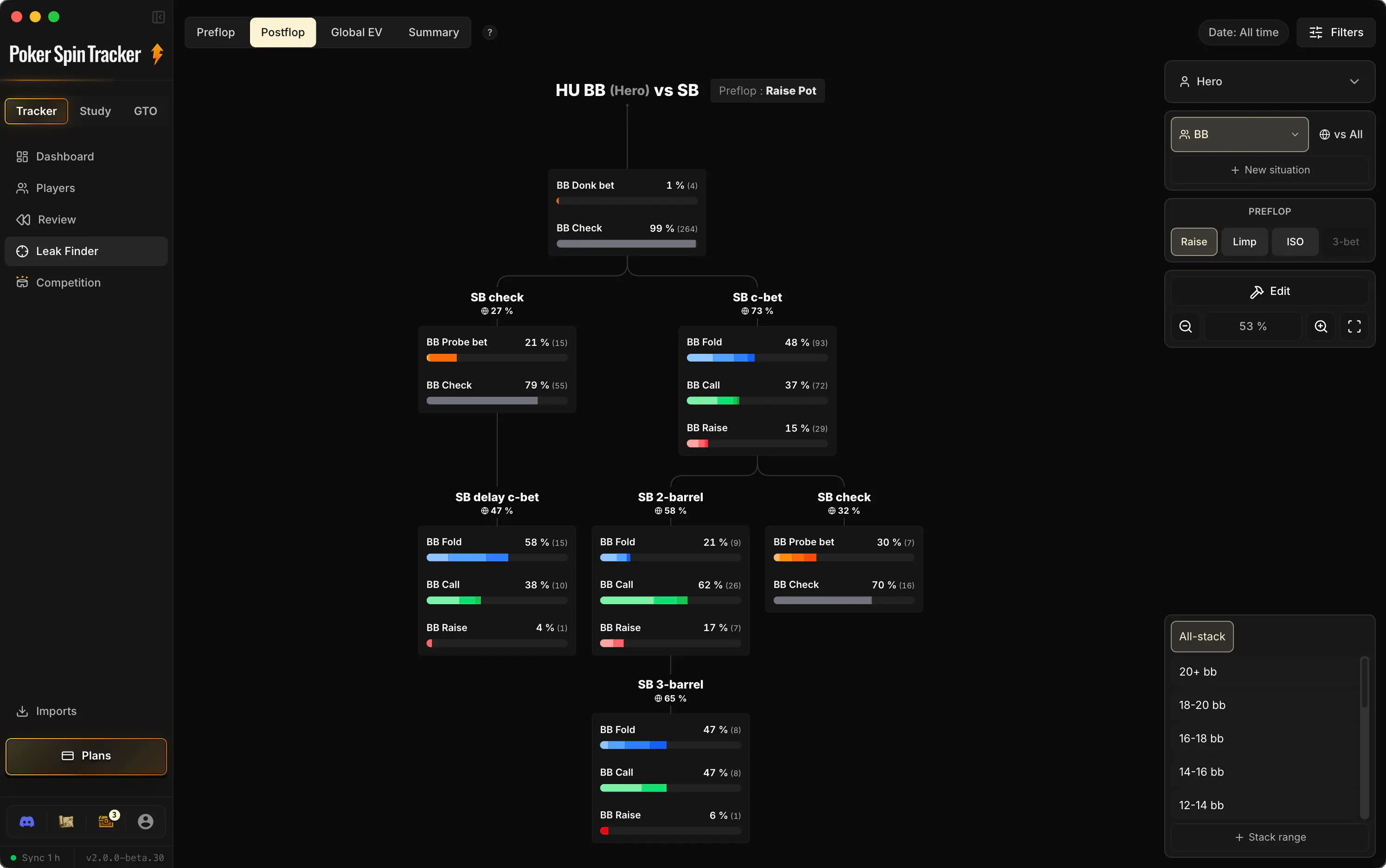
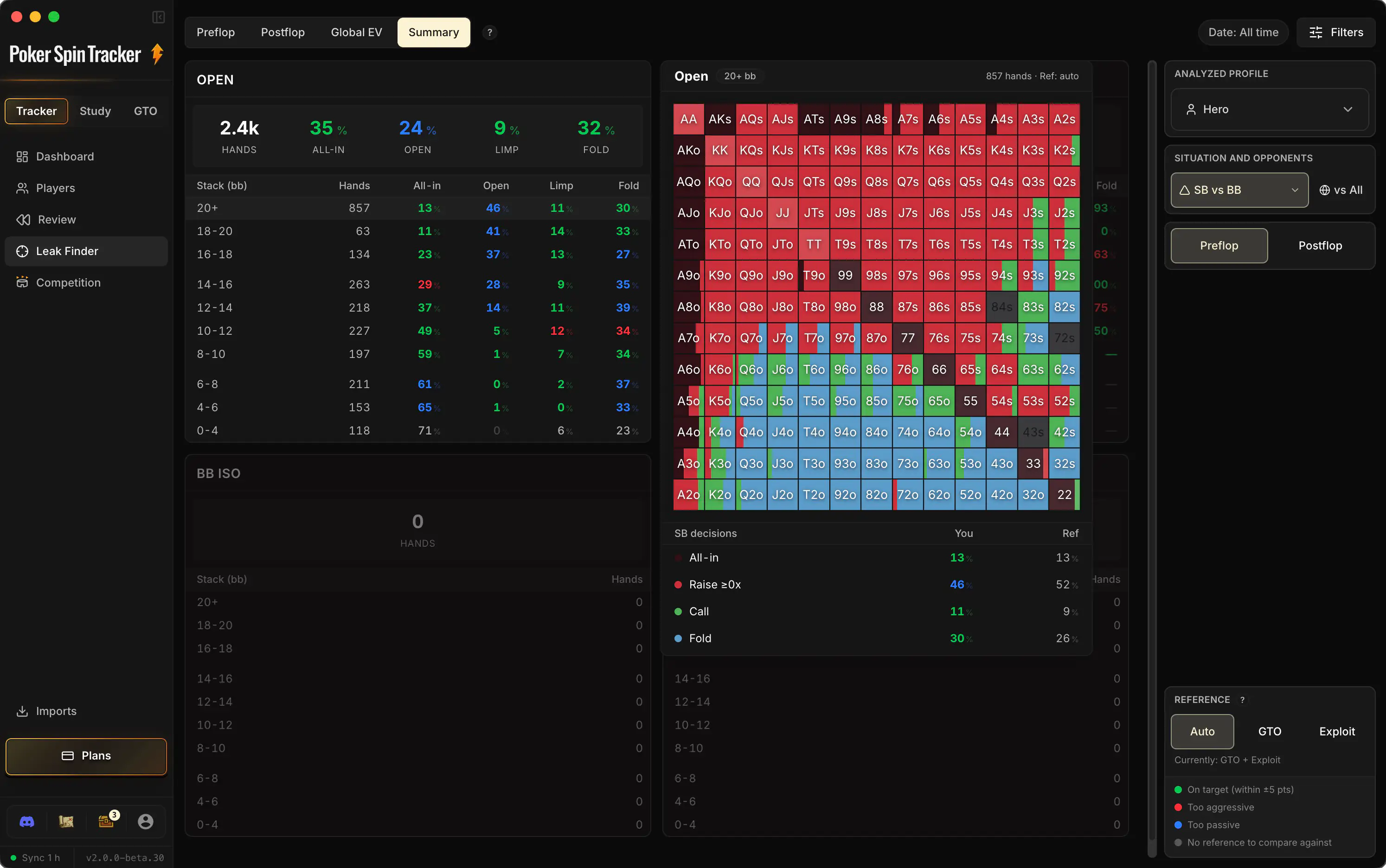
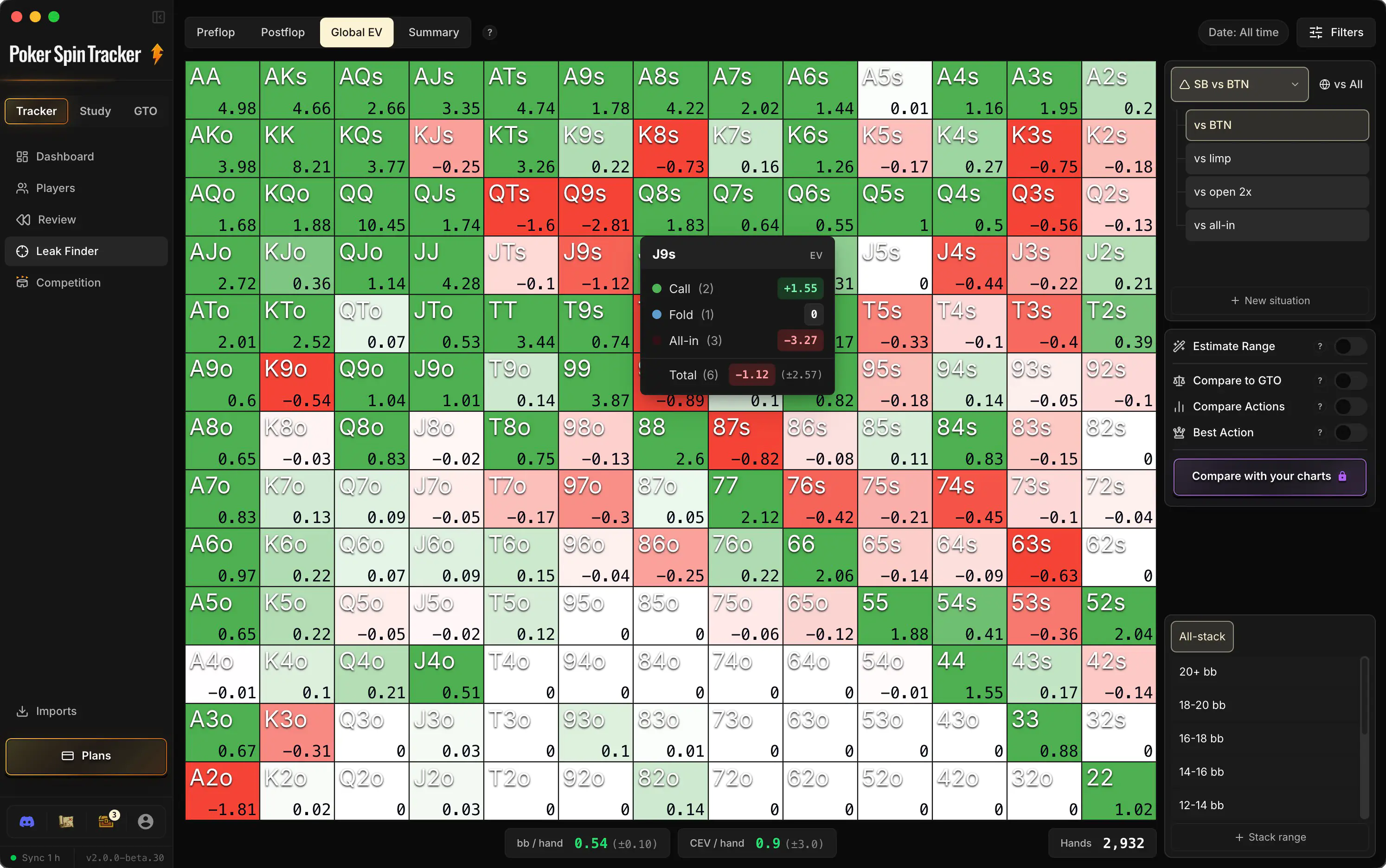
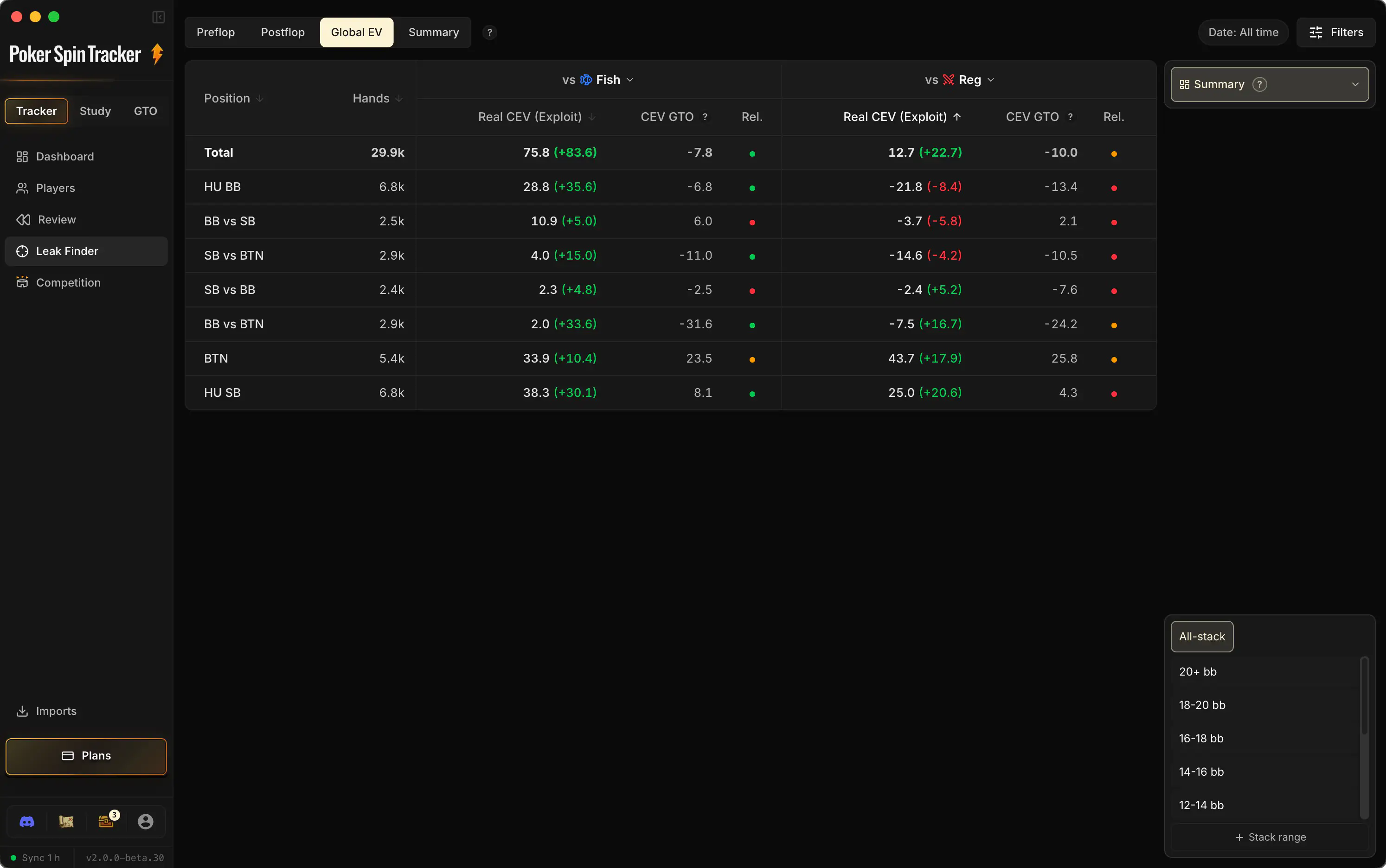
How do you and your opponents play preflop?
Analyze your opponents’ postflop strategies.
The Overview, just like on Hand2Note.
Which hands are costing you EV?
Compare your CEV against recreationals and regs.
5. Competition
The Competition section lets you measure yourself against the other players on Poker Spin Tracker. You'll find the Leaderboards (which reward volume and consistency, not just the € won), the Factions and the Challenges.
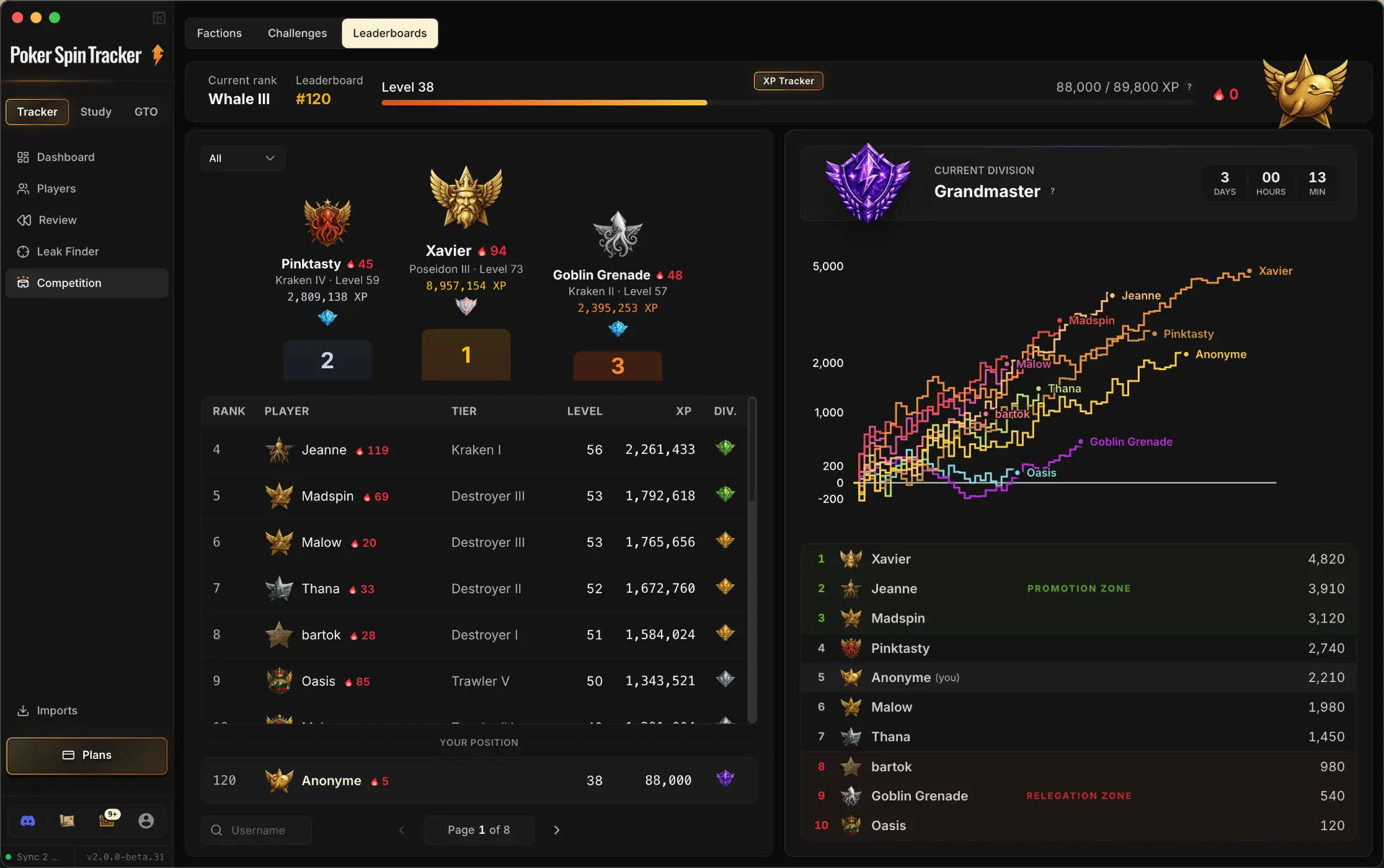
Module 7, "Compete and improve", will be devoted to Competition and to the progression tools.
Bonus: the Copilot
And to finish, a bonus that doesn't live in the sidebar: the Copilot.
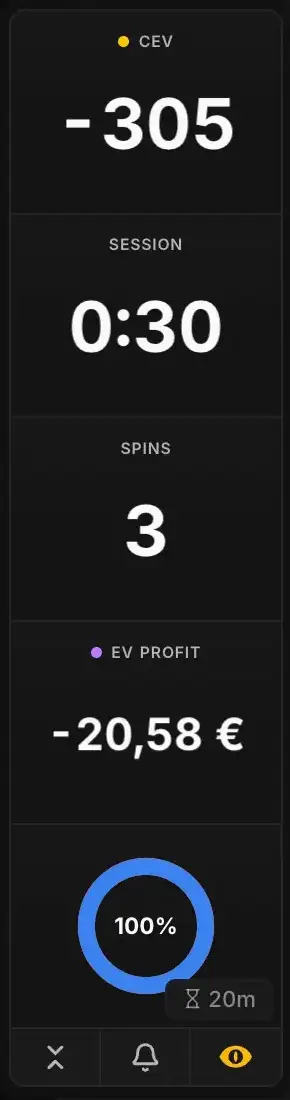
The Copilot is a small tool that feeds you very useful information live while you grind.
For example: your CEV since you opened your tables, the Fish/Reg ratio, the session time (which pauses automatically after one minute without a hand played), and so on.
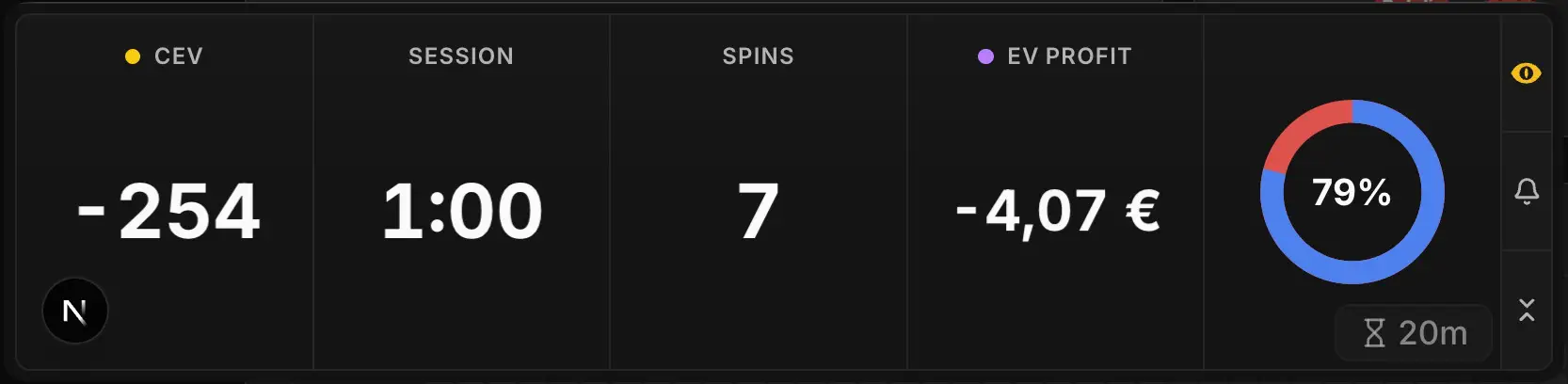
You can customize it based on which information you'd rather have in front of you, and which you'd rather not. It appears automatically when your live session starts (an option you can turn off in the preferences).
Key takeaways
• The software is organized into three views (at the top of the sidebar): Tracker (analyze), Study (learn) and GTO (the solver, coming soon)
• The Tracker view has 5 sections: Dashboard, Players, Review, Leak Finder and Competition
• The sidebar also gives access to Imports, to your account and to Discord
• No need to master it all right now. What matters is knowing that everything is one click away