Custom charts
A bonus chapter for those who have the Study Pack and want to build their own charts.

Gandalf
Co-founder of Poker Sciences
By default, the reference charts used in Poker Spin Tracker are the charts from the Poker Sciences Study Pack: an Exploit strategy vs Fish and a GTO strategy vs Reg , built to match the real Spin pool.
For the vast majority of players, these charts will be a perfect fit and you won't need to touch them. But if you want to create your own custom charts, that's possible too, and we'll see here how to do it.
Note: all charts, whether they come from Poker Sciences or from you, are set up directly in Poker Spin Tracker's Chart Library. As soon as you create, edit or enable a chart, it is used immediately by the analysis tools.
As explained in the previous chapter, this feature is reserved for users who own the Study Pack, since it directly uses its charts and the underlying system.
And good news: the Study Pack charts are used as the reference to calculate your preflop accuracy, even if you haven't bought the pack.
1. The Chart Library at a glance
The Chart Library sits in the Library tab of the Study zone. It gathers all your charts, organized situation by situation, stack size by stack size, and split between vs Fish and vs Reg .
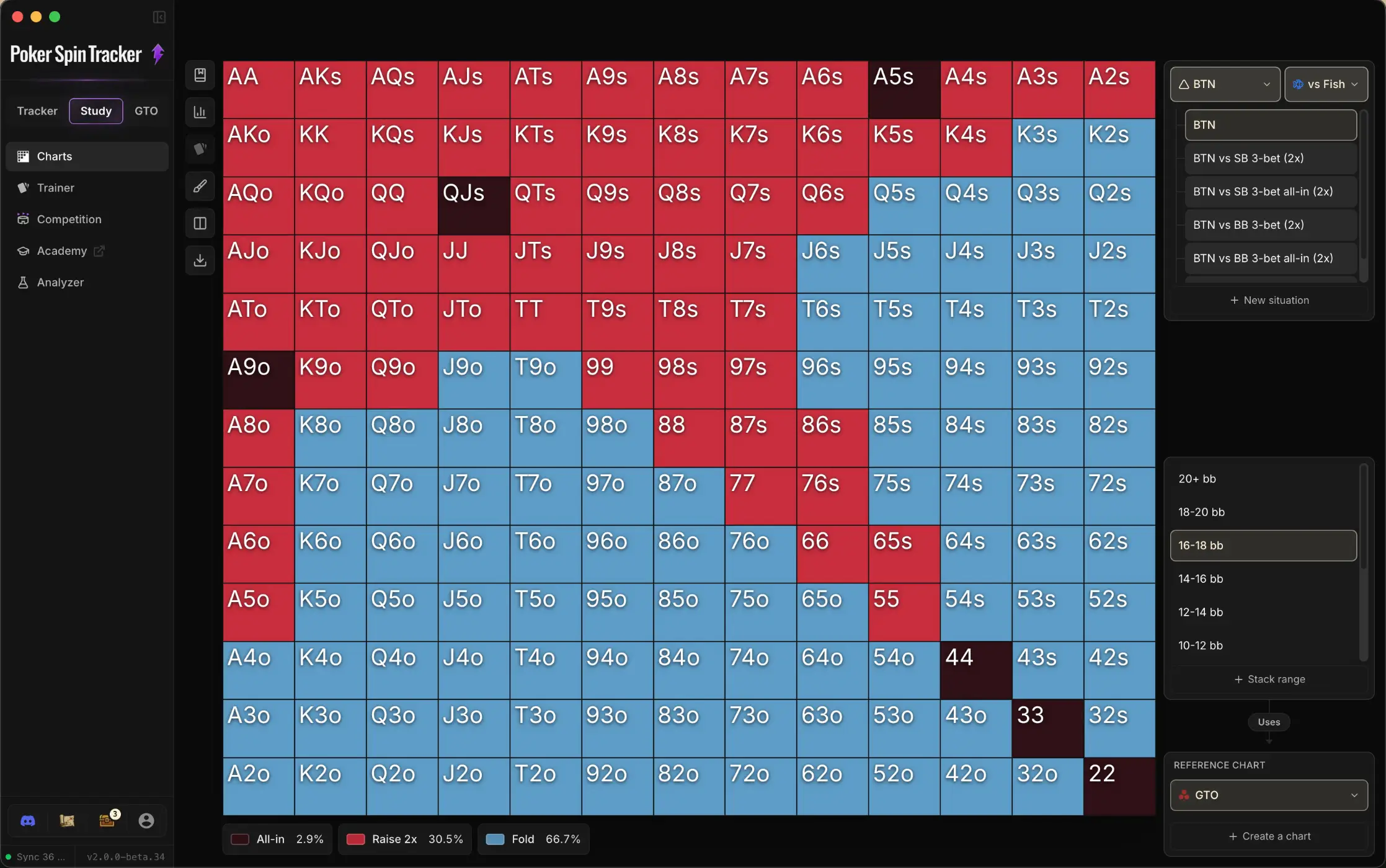
At the top of the sidebar, a button toggles between vs Fish and vs Reg : each situation therefore has two sets of charts, one against each opponent profile.
At the very bottom right, the Reference chart card shows the chart used for the current selection, meaning the situation, the stack size and the profile (vs Fish or vs Reg ) you picked.
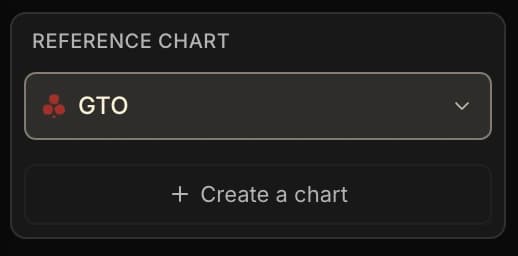
By default, these are the Poker Sciences charts:
- GTO vs Reg
- Exploit vs Fish
They are only replaced by your custom charts if you decide so explicitly.
2. Create a custom chart and set it as the reference chart
On the situation and the stack size you want to customize:
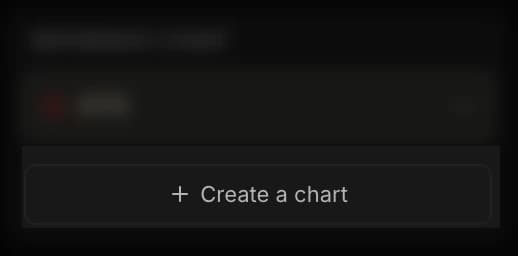
1. Click Create a chart to create a new chart.
2. You start from a copy of the current reference chart. In the Brush panel, pick an action (Fold, Limp, 2x, All-in) and its frequency, then paint the cells of the grid. You can add other raise sizes with Add raise, or fill everything and clear everything in one click.
You'll see, we tried to build the most intuitive system possible.
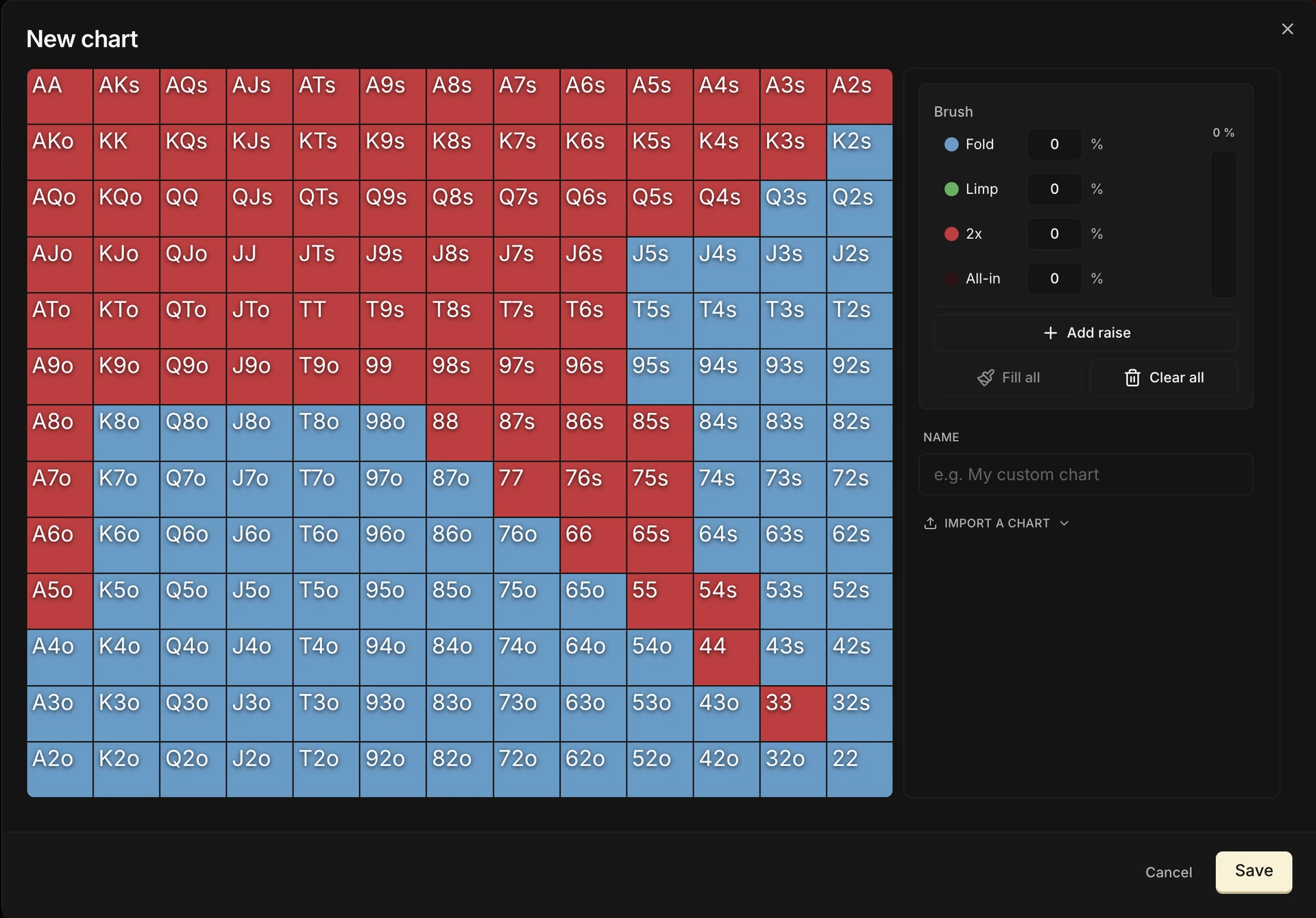
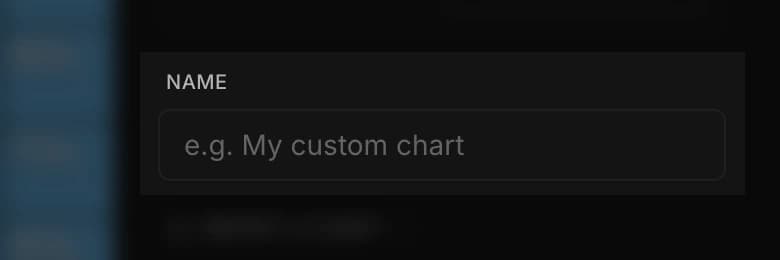
3. Give it a name in the field provided, then click Save. It joins your library in the current situation and blind level, without replacing what is already there.
4. This chart automatically becomes the reference chart for that specific situation and blind level (and only for vs Fish or vs Reg , depending on what you selected). You can then choose another reference chart, edit this one or delete it by clicking the dropdown menu .
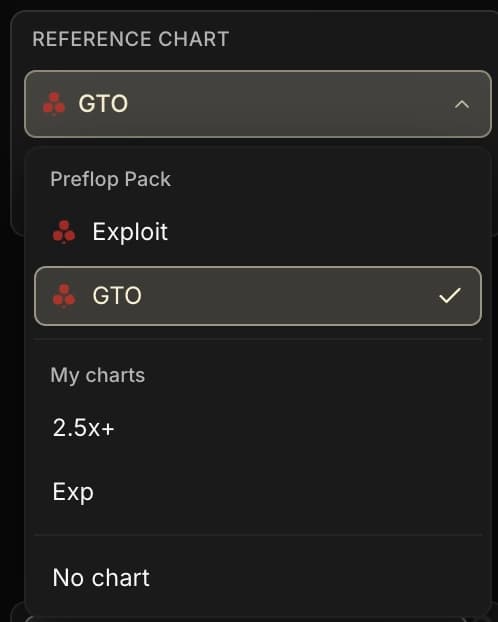
You can save as many versions as you want for that specific situation and blind level and switch between them whenever you like. As long as a chart isn't set as the reference chart, it stays in reserve.
3. Backup
To find your custom charts and situations again on another computer, enable the optional cloud backup from My account → Security → Chart Library.
4. When to customize, when to keep the default
For the vast majority of players, the Poker Sciences charts are an excellent reference.
You can build your whole strategy around them, all the way to the highest stakes.
But as you progress, several reasons may push you to create your own custom charts:
- You already follow charts that come from coaching, masterclasses or chart packs, and you want them inside the tracker.
- You exploit the opponent data measured in the tracker and run a solver to build exploitative charts tailored to your pool.
- You want to simplify a few combos for more clarity at the table, which is perfectly fine.
That's the moment you'll want to bring in your own changes, and when custom charts truly make sense.
Keep in mind that the Poker Sciences charts were designed as references: an excellent base, combining performance and simplicity.
But they aren't an ultra-strict guideline that you absolutely have to follow in every situation. In poker, there are bad decisions, but sometimes there are also several good decisions that are worth just as much.
5. Key takeaways
Custom charts are not mandatory. For the vast majority of players, the Poker Sciences charts remain a solid, clear and sufficient base.
• Chart Library: everything is set up directly in Poker Spin Tracker and applies immediately to the analysis tools.
• Creation: a custom chart starts from a copy of the reference chart, then is edited cell by cell.
• Reference: a chart can be set as the reference only for one situation, one blind level and one specific profile: vs Fish or vs Reg .
• Backup: cloud backup is optional and lets you find your charts again on another computer.
This chapter wraps up our detour into custom preflop charts. In the next chapter, we leave the 13×13 grid behind to open the Postflop tab...