
Hands view or Spin view?
Two complementary views of the Review: Hands to analyze your spots, Spins to browse your tournaments.

Gandalf
Co-founder of Poker Sciences
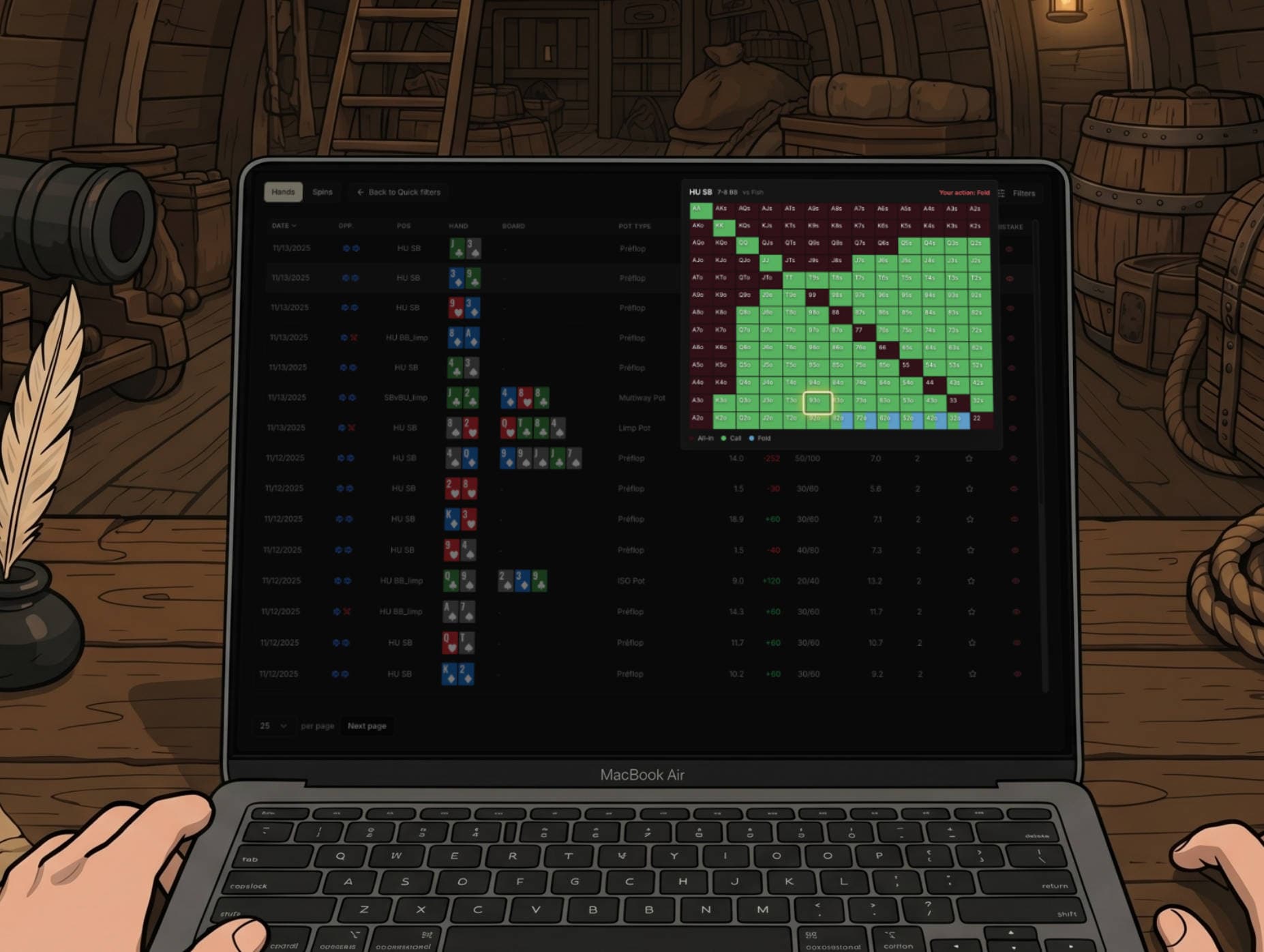
The Review page offers two alternative views of your history: a list of hands with the Hands view, or a list of tournaments with the Spins view.
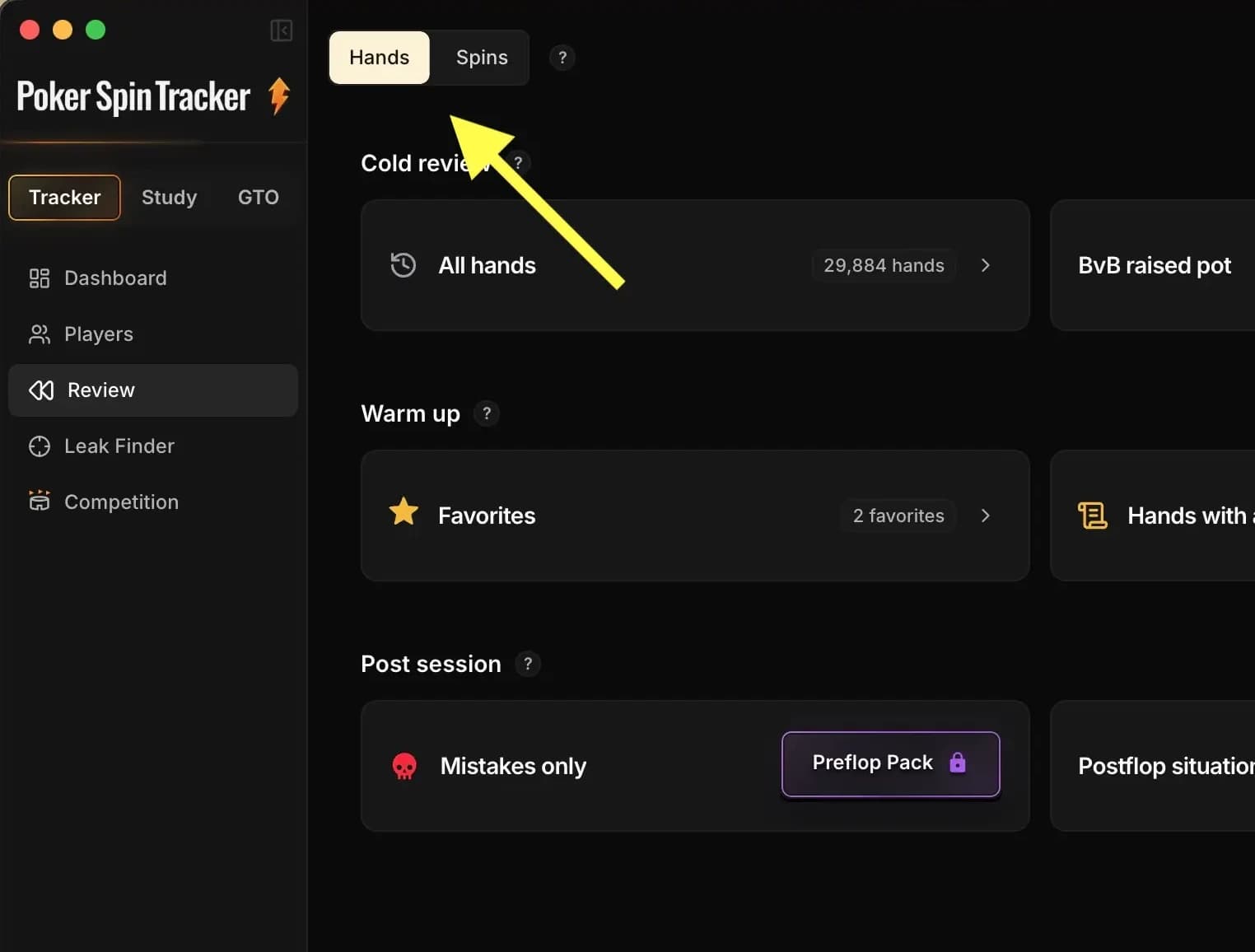
Both views share the same global filters in the Filters panel (period, buy-in, room, Spin type) but offer different Quick Filters, tailored to each of these two uses.
1. The Hands view: anatomy of a row
The Hands view zooms in on each hand: one row = one hand. It's the view you actually work in, the one you use to apply the one spot at a time method from the previous chapter.
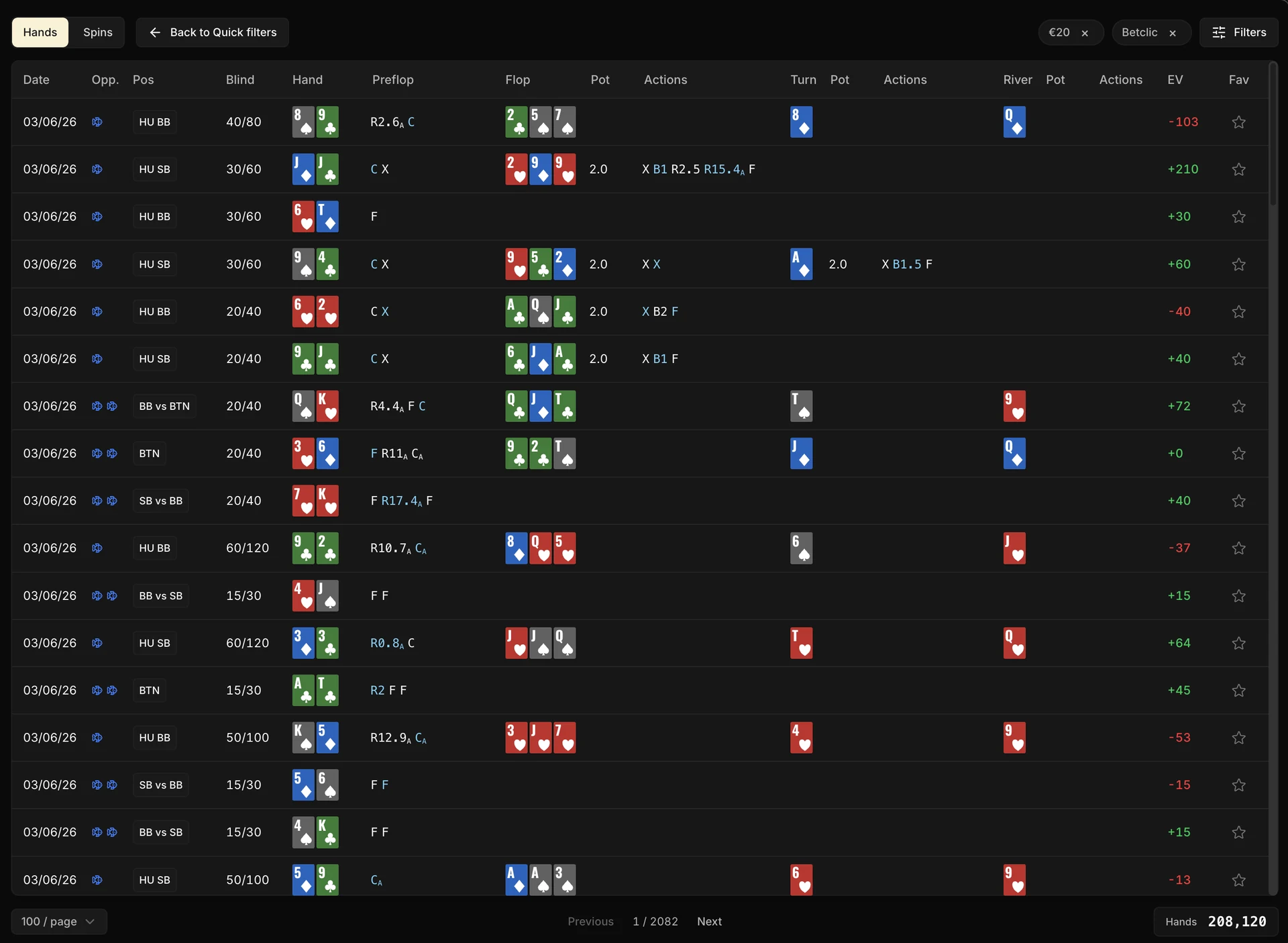
The table displays seventeen columns per hand. On the left the metadata (Date, Opp., Pos, Blind), in the middle the full run of the hand street by street, on the right the EV and the favorite star. Most of them are self-explanatory, but a few deserve a word.
| Column | What it shows |
|---|---|
| Opp. | Opponents at the table: fish, regs, or both, so you can size up the table at a glance. |
| Pos | Your position in this hand (BTN, SB, BB, HU SB/BB). |
| Blind | The blind level at the time of the hand (SB/BB), for example 40/80. |
| Preflop → River | How the hand unfolds, street by street. Each postflop street shows its board, the Pot at the start of the street (in bb) and the Actions as compact tokens (raise, bet, check, call, fold…). |
| EV | All-in adjusted EV of the hand. Green = positive, red = negative. |
Some of the columns sort when you click their header (Date, Blind, the three Pot columns, EV and Fav); to narrow the list down, you use the global Filters panel (the Filters button at the top right ) and the Quick Filters, which we cover next.
2. The Hands view Quick Filters
The Hands view offers six preconfigured Quick Filters, grouped into three categories based on when you use them. They aren't necessarily the ones you'll use most, but they give a good idea of what can be done:
Warm up
Post session
Cold review
These Quick Filters are there to get you started. You'll quickly create your own (the spots you work on most often) via the system described in the dedicated Quick Filters chapter.
Before moving on, let's take a second to come back to one Quick Filter whose behavior is a bit special: Mistakes only.
When it's active, an extra column appears on the right (Mistake) with a small red skull. Hovering the icon shows the expected chart for that spot (against a reg or a fish), so you can see at a glance what you should have done. The details of this detection are covered in a dedicated chapter.
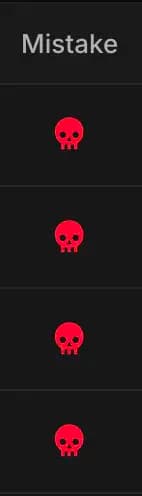
The Mistakes only Quick Filter, like the Mistake column that comes with it, requires the Study Pack: mistake detection relies on its charts.
3. The Spins view: anatomy of the table
Now let's move on to the Spins view:
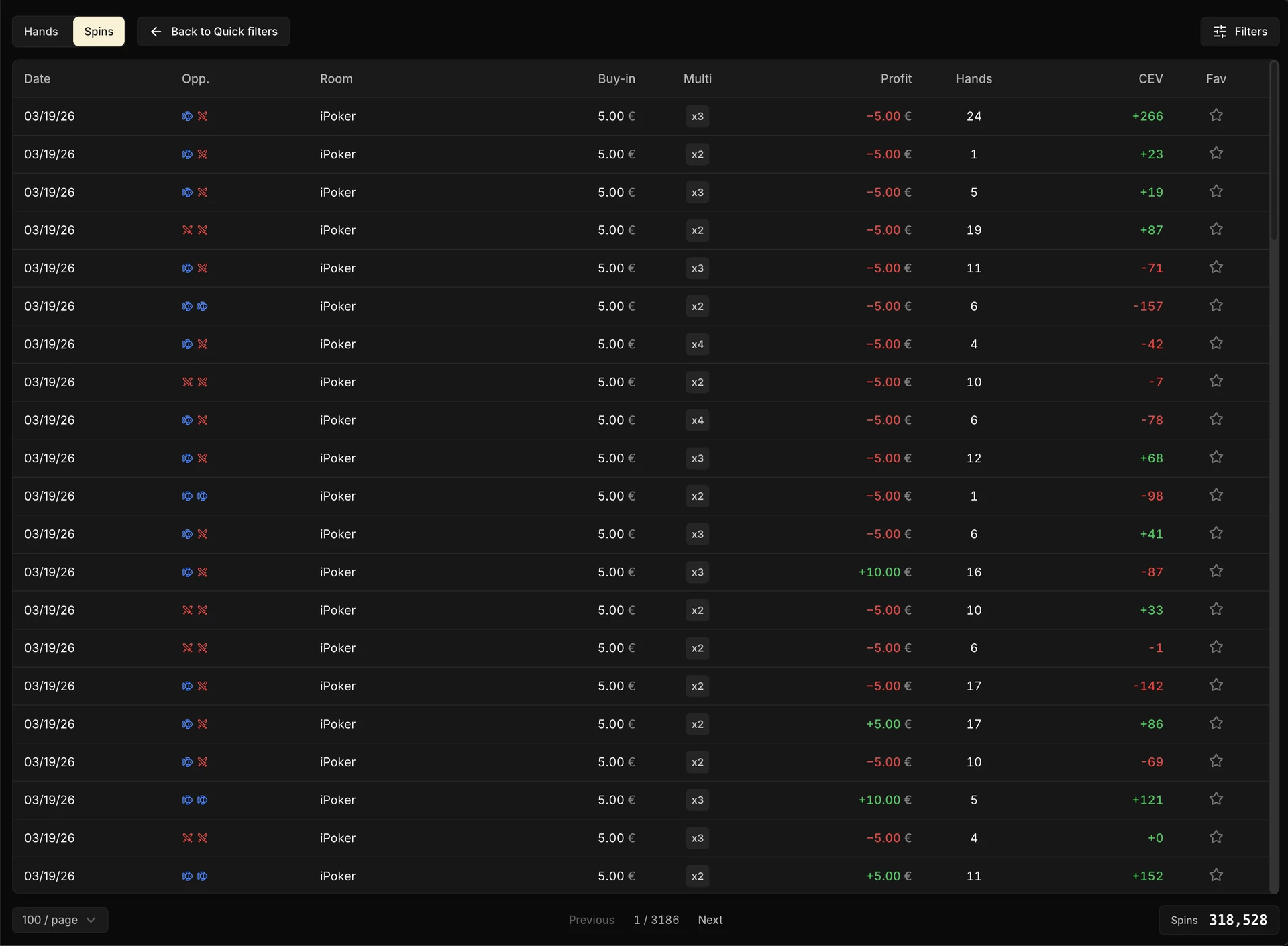
Each row sums up a tournament in nine columns. No single column matters every time, but together they let you scan your history very fast.
| Column | What it shows |
|---|---|
| Date | Date the tournament was played. By default, the most recent ones first. |
| Opp. | Quick overview of the table quality: fish, regs, or both. Lets you spot the profitable tables at a glance. |
| Room | The poker room the tournament was played on. |
| Buy-in | Tournament buy-in, shown in its currency. |
| Multi | The prize pool multiplier (x2, x3, x10+…), with a color code that highlights the big tiers. |
| Profit | Your gain or loss on this Spin. Green = gain, red = loss. |
| Hands | Number of hands played in the tournament. |
| CEV | Your CEV for this tournament, nothing more. |
| Fav | Click the star to mark the tournament as a favorite. |
4. The Spins view Quick Filters
The Quick Filters offered by default in the Spins view are slightly different from those of the Hands view. They're mostly there to help you quickly find specific tournaments: the most recent ones, your favorites, the latest jackpots, or your biggest prizepools.
Warm up
Post session
Cold review
Keep in mind that these are the default Quick Filters and that you can create your own custom Quick Filters! We'll come back to this system in the dedicated Quick Filters chapter.