
The HUD
Know who you're up against, without taking your eyes off the table.

Gandalf
Co-founder of Poker Sciences
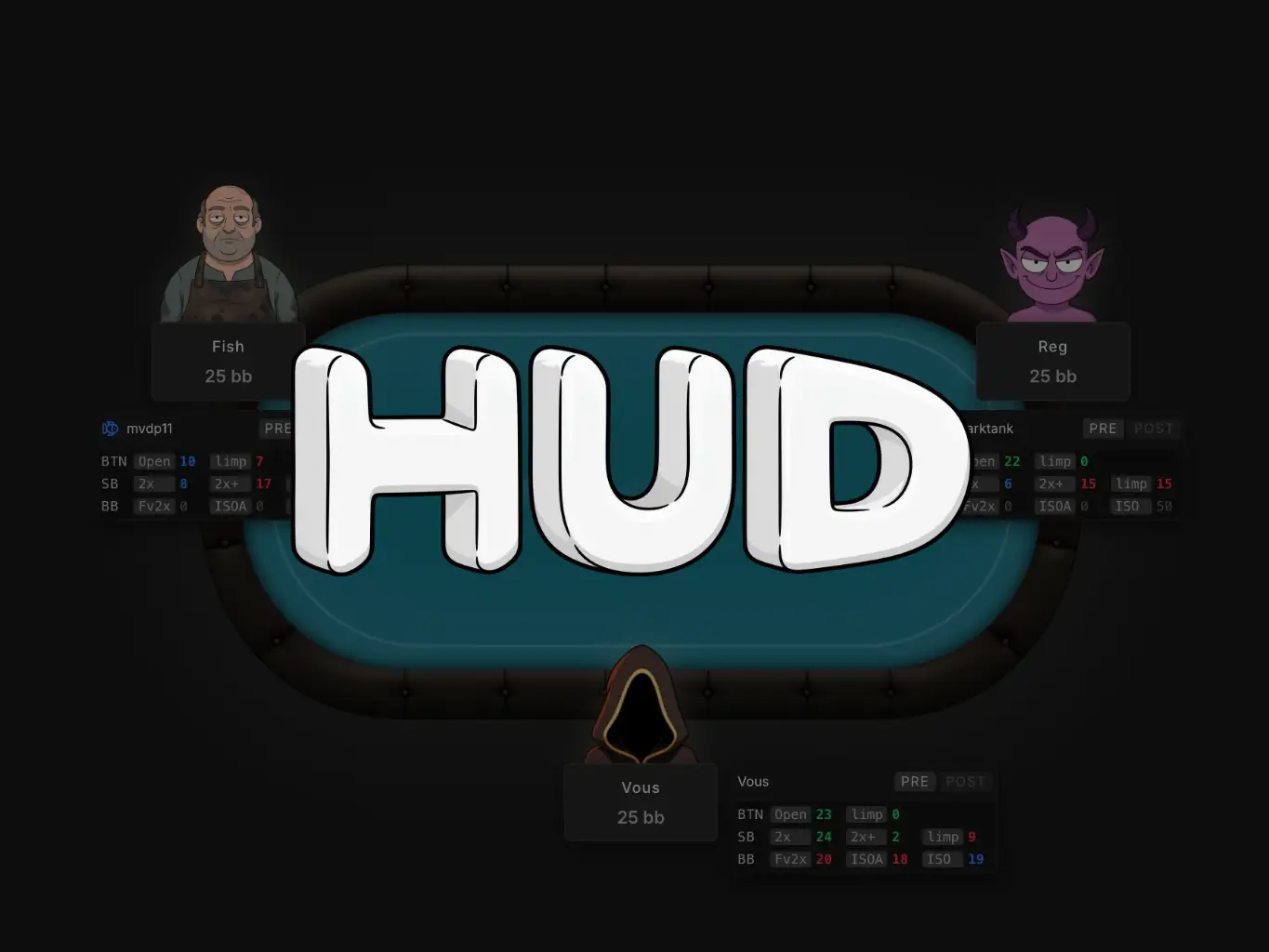
The chapter on the Players page announced it: the study of your opponents was about to gain an in-game HUD.
Here it is.
The HUD (Heads-Up Display) shows, in real time and directly on your tables, a block of stats for every opponent sitting across from you.
You choose the stats, their layout and their colors.
Poker Spin Tracker handles the rest: detecting your tables, recognizing the players, placing the blocks in the right spot and updating the numbers hand after hand.
This chapter covers the essentials: enabling it and knowing which rooms are compatible, building your HUD, and reading it without falling into the small-sample traps.
Compatible rooms
For now, the HUD works on four rooms:
| Room | Supported spins |
|---|---|
| Winamax | Expresso |
| PokerStars | Spin & Go |
| Unibet | Power Spin |
| iPoker (PMU Poker) | Twister |
Two notable absences, for two different reasons:
- GG Poker: nicknames are anonymized at the source (seen in the previous chapter) and the hands are only available after the fact. No HUD is possible on this room, no matter which tracker you use.
- Betclic: the room does not allow HUDs, and does not write the hands to your disk live.
The general rule: the HUD only exists where the room writes your hands live and allows its use. A room that only provides the history once the game is over cannot feed a real-time display.
Where to find it, how to enable it
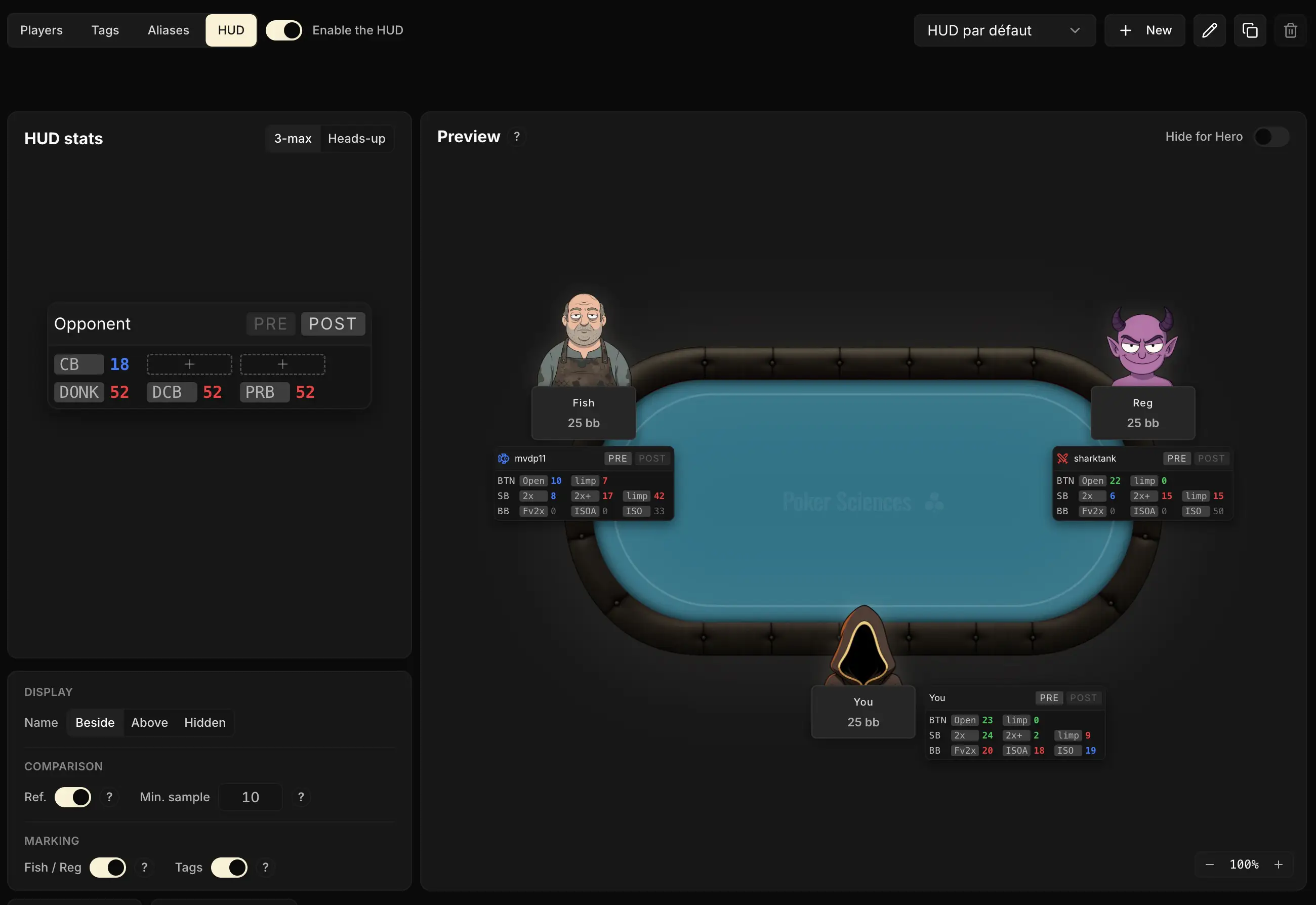
The HUD is configured on the Players page , HUD tab (screenshot at the top of the chapter).
Everything starts with the Enable the HUD switch, at the top left of the page: as long as it is off, nothing shows on your tables.
What it needs
The HUD relies on live import (Import your first hands): Poker Spin Tracker has to monitor the folder where your room writes your hands, exactly as it does for your automatic imports.
If something is missing (no monitored folder, a folder that can't be found, monitoring stopped), a banner at the top of the tab tells you, room by room, with the button that leads to the right setting.
On macOS, the HUD also needs two permissions, shown in a box at the top of the tab:
- Accessibility: to position the blocks correctly on your tables.
- Screen reading: to read your opponents' nicknames quickly.
The Allow button opens the right panel of your Mac settings directly. If the permission is already granted but not yet taken into account, the Restart button restarts the app.
The HUD isn't available on Windows ARM or Linux. On Intel Macs and Macs running a version older than macOS 14, it works, but nicknames are read with a delay: the blocks show up a little later at the start of a game. The tab tells you when that is the case.

Building your HUD
A ready-made HUD
You have nothing to build to get started: Poker Spin Tracker ships a deliberately simple HUD, a single row of three stats per opponent (VPIP, PFR and AGG), shown as numbers only.
It is more than enough for your first sessions, and a good base to build on.
A block, sections, cells
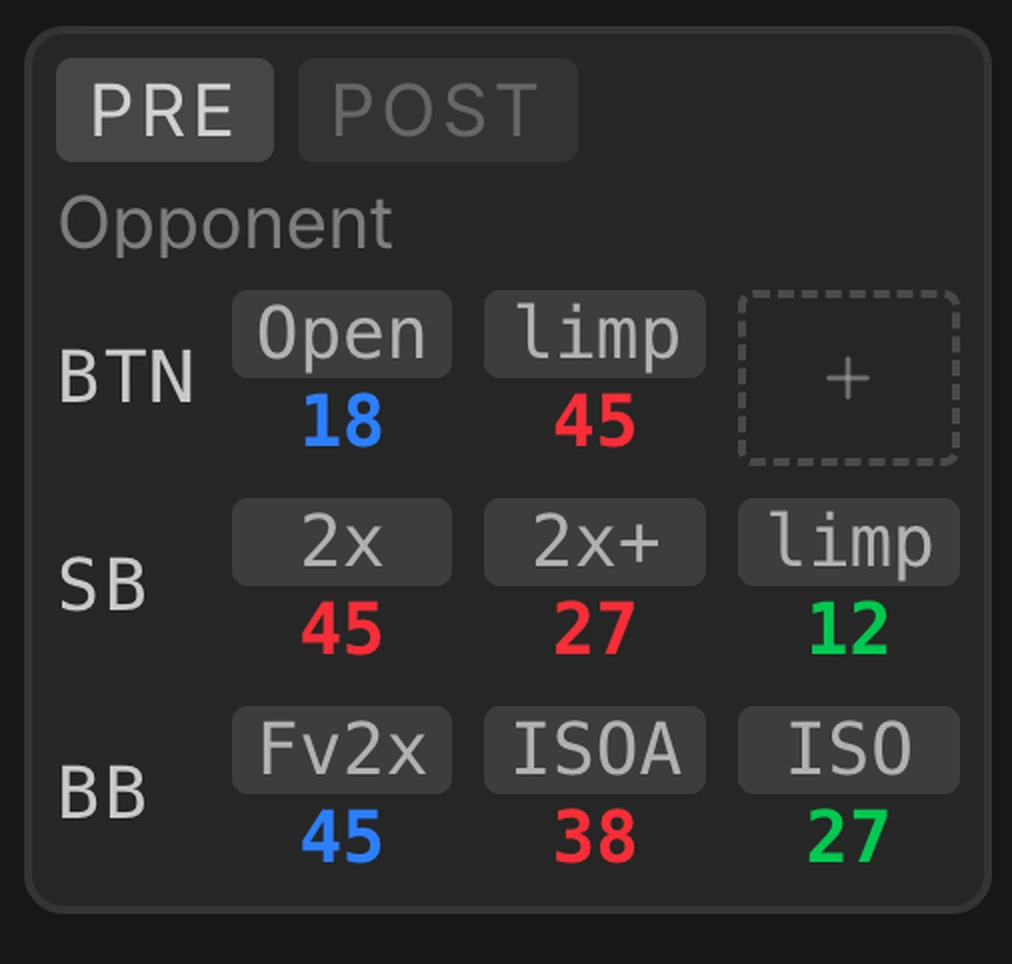
A HUD block can be split into sections, displayed as tabs inside the block: only one is visible at a time, and you switch from one to the other with one click, even in game.
Each section is a free-form grid whose rows and columns you choose.
You can even place several blocks per opponent (the panels), each positioned wherever you want.
One HUD, or one per format
By default, the same HUD is used on all your tables, and its stats combine each player's 3-max and heads-up hands.
If you prefer different stats three-handed and heads-up, turn off the One HUD for 3-max and HU setting: you then configure a 3-max grid and a heads-up grid, and Poker Spin Tracker switches on its own from one to the other as soon as a player is eliminated.
Adding a stat
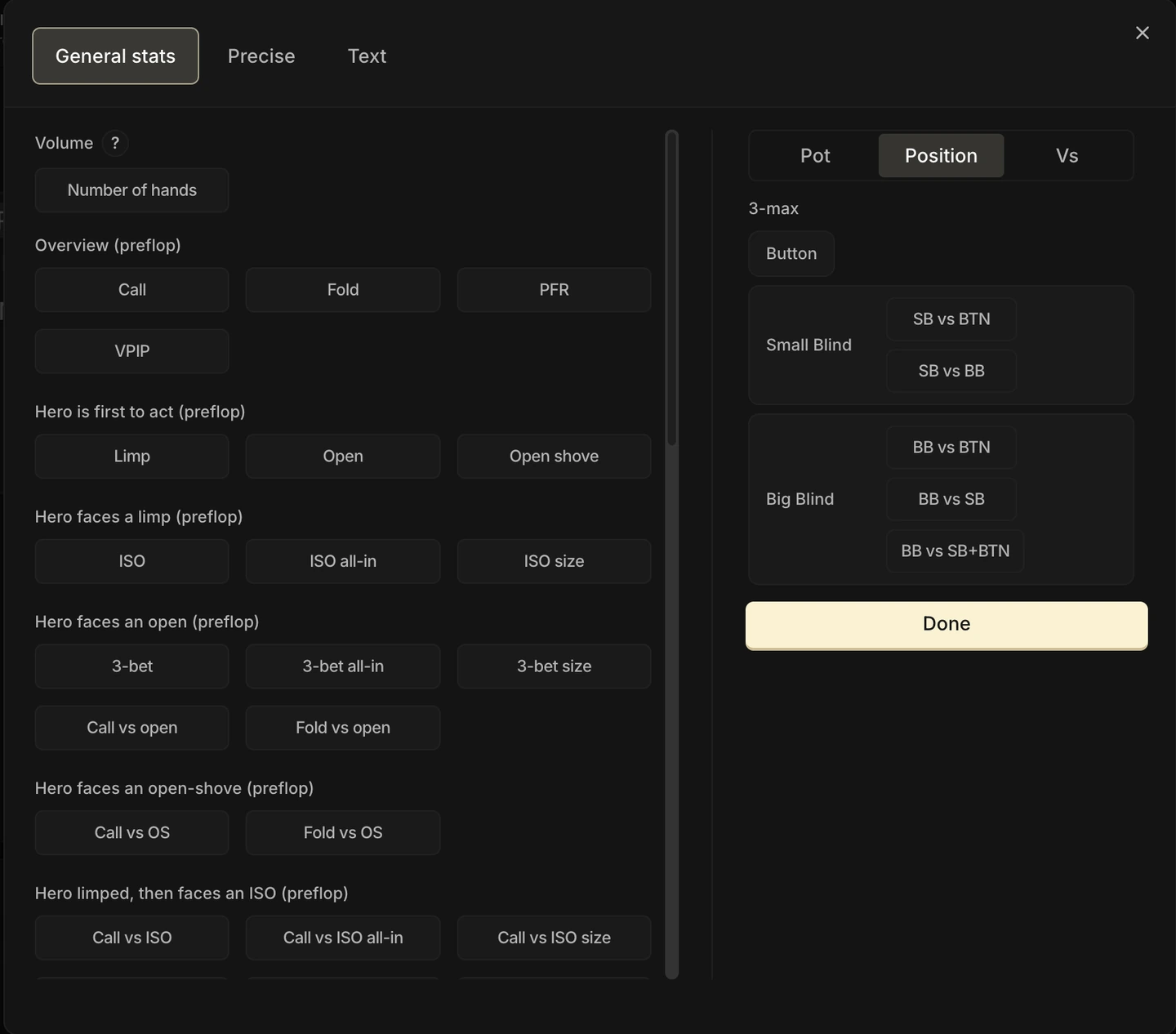
Click the "+" of an empty cell: the catalog opens, with five tabs:
- General stats: the catalog of classic stats (VPIP, open, limp, c-bet, fold to steal, donk, AF…).
- Precise: a custom stat, built from an exact action line (for example "SB open 2x, then fold to a 3-bet").
- Number of hands: the number of hands you have played against that player.
- EV: what the player wins or loses in chips, per hand, per Spin or in total.
- Text: a free cell, with no number, to label a row or title a group of stats, in the color of your choice.
Restricting a stat
On the right of the catalog, each general stat can be limited to a precise situation:
- Format: 3-max, heads-up, or both. The choice is free: nothing stops you from putting a heads-up stat in your 3-max HUD.
- The player's position.
- Pot type and opponent (against a Fish, a Reg or yourself), for postflop stats.
- Effective stack: a VPIP from 8 to 12 bb, a 3-bet at 20 bb and above…
- Size of the bet faced, for defense stats: a fold vs c-bet from 25 to 50% of the pot, a fold vs open at 2 bb…
Every restriction cuts the sample: a fold vs c-bet limited to one bet size and one stack band only counts a fraction of the situations. Keep these restrictions for frequent stats (more on this below).
Organizing the grid
Hover over a stat: a bar appears under its column and another to the left of its row. Their "+" buttons insert a column or a row at that exact spot, their trash can deletes it.
Above the block, + Section adds a tab, and the panel row carries + Panel. The small arrow on a panel's tab opens its actions: Rename, Hide in game (the panel stays editable, but no longer shows on your tables) and Delete.
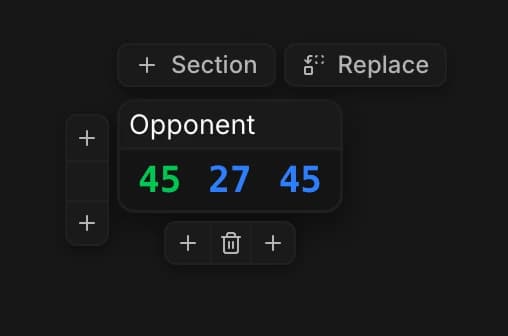
Drag and drop moves a stat from cell to cell, or to another section by dropping it on that section's tab. A text cell can span several columns using the handle on its right edge, to title a whole group.
A right-click on a cell copies its stat, its column or its row, then pastes it elsewhere: handy for duplicating a row of stats you have already set up.
And every action can be undone: Undo and Redo appear at the top of the editor as soon as you make your first change (⌘Z on Mac, Ctrl+Z on Windows).
Replacing a panel
The Replace button, above the block, puts any other panel in place of the open one: a panel from this grid, from the other format, or from another of your HUDs. It can also replace the whole grid in one go.
It is the fastest way to copy your 3-max HUD into your heads-up HUD, or to reuse a panel built elsewhere.
Setting up a cell
Click a stat in the block: its inspector opens below the editor. It gathers everything about that cell:
- Title: the name shown when you hover over the stat. Useful for a Precise stat, whose only name is otherwise the technical description of its action line. Clear the field to go back to the default name.
- Edit reopens the catalog to change the stat, the trash can deletes it.
- Background: a color to group your stats visually, from a palette of neutral tones or with the free color picker.
- Reference and Tolerance: the value the stat is compared to, and the gap allowed before its color changes (5 points by default).
- Colors: the three colors of the scale, specific to that cell.
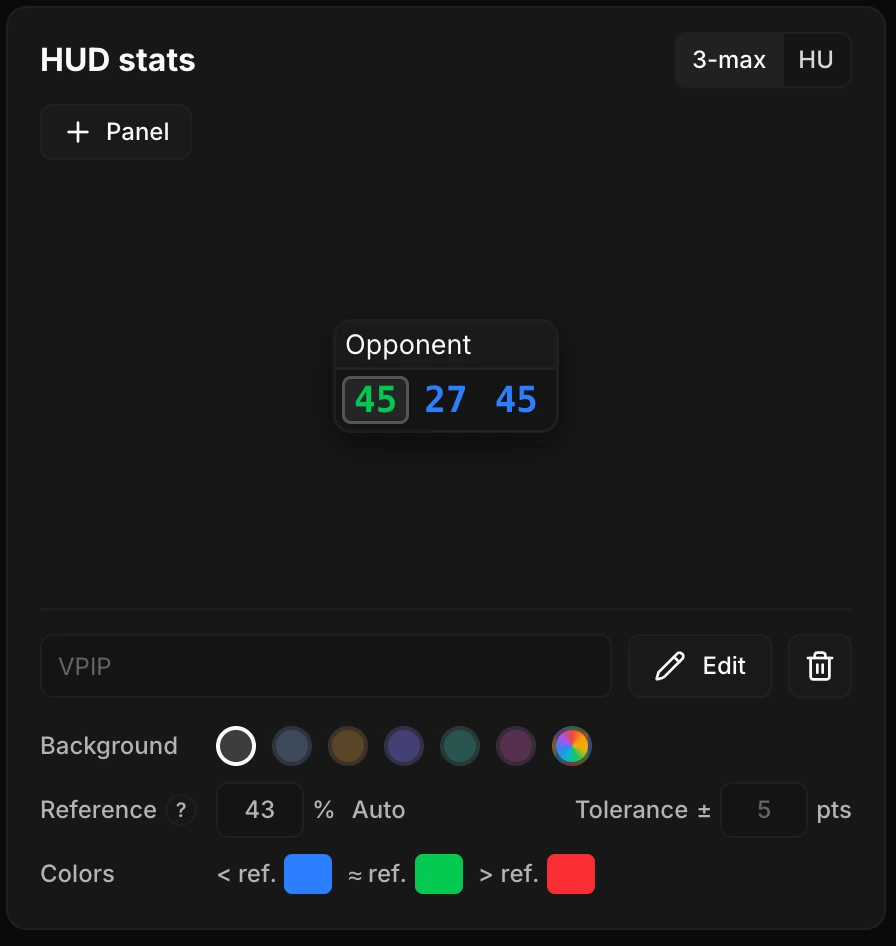
By default, the reference is calculated automatically (more on this in the next part) and shows in gray. Type another number to set your own; the Auto button restores the calculation.
An EV cell has no calculated reference: set your own in chips for it to be colored.
To the right of the editor, the preview places your block on a mock table with real players from your database (a fish and a reg you have run into a lot): you compose your HUD while seeing immediately what it will look like in game, with real values.
Your own block
By default, the HUD also shows a block for you, with the same stats as your opponents': the direct comparison, on screen, between your game and theirs. The Hide for Hero switch, in the preview, removes it.
The settings
Below the editor, the Settings card is split into two tabs. Display sets the look of all your blocks:
- Stat names: beside the number, above it, or hidden (numbers only).
- Number size, and column and row spacing, for a more compact or a more airy block.
- Number color: the white of neutral values and the gray of small samples.
- Colored stats: turns the comparison with the reference on or off.
- Nickname and Hand count, shown at the end of the nickname line.
- Fish / Reg logo and Tag dots, off by default.
- Transparent HUD: blocks fade when idle and get their full opacity back on hover, with an adjustable opacity.
The Stats calculation tab decides what the numbers measure:
- One HUD for 3-max and HU, covered above.
- Period: limit the stats to the last X days, to read an opponent's current game rather than the one from a year ago. Leave the field empty for the whole history.
- Gray stat below N occurrences, detailed further down.
Several named HUDs
Your HUDs live in a small library, at the top right of the Players page. The dropdown switches from one to the other (New HUD, at the very bottom of the list, creates one), and the ⋯ button opens Duplicate, Share, Rename and Delete.
The selected HUD is both the one you edit and the one displayed in game: handy for testing a variant without touching your main setup.

Sharing a HUD
Share sends your HUD to other players, by their nickname: a coach to their students, a study group among themselves. The recipient finds it in their library and, if they accept it, it becomes their active HUD.
Only the stats and their layout are sent: the position of your blocks on your tables stays yours.
Starting over
At the bottom of the tab, three buttons: Reset the HUD restores its original stats and layout, Reset blocks restores their original position and size on your tables, and Recalculate stats rebuilds every value from your hands, in the background.
On your tables: what happens on its own
Once the HUD is enabled, you have nothing to do at the start of a session.
As soon as a table window opens, Poker Spin Tracker detects it and starts the live import, a few seconds before the first hand.
It also reads the nicknames displayed on screen: the blocks appear right at the start of the first hand, with the full history you have on each player, without waiting for a hand to be played.
The blocks are anchored to the table window: move the table, they follow. Every table gets its own blocks, even in a heavy multi-tabling session.
Adjusting position and size
Drag a block to reposition it, pull the handle at the bottom right to resize it.
The settings are stored per room: place your blocks once, they apply to all your tables, in all your sessions.
Once your blocks are where you want them, lock them: when you hover over a block, a padlock appears next to the handle. One click freezes all your blocks, on all your tables, so that a stray click in the middle of a hand no longer moves them. A second click unlocks them.
Live values
Each stat shows the player's full history, current session included (or the period chosen in the settings), and updates on every new hand. When a player busts, their block disappears.
Hover over a number: a bubble gives the stat's name, its filters and, in brackets, the number of occurrences it is calculated on.
The colors of the values compare each stat to a reference, exactly as in the Leak Finder: preflop against the reference GTO ranges, postflop against the average of the regs.
- Green: on target (±5 points)
- Red: too aggressive
- Blue: too passive
Colors your way
This is the default behavior, and everything can be customized, from the global setting down to a single cell:
- The three colors, for the whole app: in My account › Preferences, Deviation colors card. They apply to the HUD as well as to the Leak Finder Overview.
- The three colors of a single cell: in its inspector, Colors row. Handy for telling a family of stats apart at a glance.
- A cell's reference: replace the calculated value with your own (your own exploitative target, for example), and the stat is colored against it.
- A cell's tolerance: 5 points by default. Widen it for a stat that varies a lot, narrow it for a stat you want to keep a close eye on.
- The white and the gray of numbers that are not compared: Number color setting.
And if you prefer a HUD that passes no judgment, turn off Colored stats: only cells with a custom reference stay colored.
Categories, tags and notes
Once the Fish / Reg logo and the tag dots are turned on in the settings, each nickname is preceded by the logo of its category ( fish, reg, as covered in Fish vs Reg) and the dots of your custom tags (Your opponent tags). A reg with a GTO score above 90 even wears a crown on their swords.
A click on the tag dot, at the top left of the block, opens a menu to change their category or give them a tag, without leaving the table.
On PokerStars, the logo and dots don't show in game: the room doesn't allow it. They stay visible everywhere else, on the Players page as well as in the Review.
The scroll next to the nickname flags a note: golden when the player has one, faint on hover otherwise. A click on it lets you read or write a note in the middle of a game.
Finally, click a nickname: a compact player card opens next to the block, the same one as on the Players page, without ever stealing the focus from your poker client. Move the cursor away and it closes.

The small-sample traps
In Spins, you meet most of your opponents over a handful of hands: a few dozen at best, often fewer.
At that scale, many of the numbers on display mean almost nothing.
A stat is a fraction, and everything depends on its denominator. VPIP moves on every hand: a few dozen are enough to sketch a profile.
A "fold vs 3-bet" only moves when the situation comes up. Over the same volume, it often rests on two or three occurrences.
Two safeguards protect you:
- Grayed-out block: below 20 hands seen on a player, all of their values show in gray. Readable, but to be taken with a grain of salt, and with no comparison color.
- Grayed-out stat: the Gray stat below setting grays each stat individually as long as its number of occurrences is too low (10 by default, adjustable). A VPIP measured over 200 hands stays white while a "fold vs barrel" seen twice turns gray.
And a stat without a single occurrence simply shows a dash, "-".
Show the number of hands you have played against each player, across your whole history: as a cell (Number of hands tab of the catalog), or at the end of the nickname line (Hand count setting). It is the number that tells you how far to trust the others, and it is never grayed out.
The safeguards don't do everything: three biases lie in wait for any HUD read.
Mechanical extremes
With only two occurrences, a stat can only show 0%, 50% or 100%.
You see a 100%, and you tell yourself:
He folded twice to my 3-bet, I've found my victim.
No: you have seen two folds. Plenty of perfectly sound players would show the same 100% after two occurrences.
Extreme values are the norm in small samples, not a signal.
Sampling variance
Even a frequent stat swings hard early on. A player whose real VPIP is 25% can easily show 40% after 20 hands, simply because he was dealt a run of playable hands.
The order of magnitude to remember: at 20 hands, a VPIP is read to within ±20 points; it takes a few hundred hands to read it to within ±5 points.
Confirmation bias
An image forms fast: one bluff shown, two limps, and the label is stuck on.
After that, you read the stats in the direction of the label: the 70% VPIP "confirms" the maniac, the 100% fold "confirms" the victim.
Stats should test your impressions, not decorate them. The rarer a stat, the more hands it needs: in game, rely first on the frequent stats, and keep the fine reads for real samples.

In game, favor general stats
Your HUD only analyzes one player at a time: that is its strength (the information is personalized) and its limitation (the sample is tiny).
That is the big difference from your analysis away from the tables.
In the Leak Finder, when you study the Fish or the Regs, you aggregate the hands of hundreds of players under a single tag: even a very precise stat ends up resting on a solid sample.
On a single opponent, it will almost never have one.
A precise stat built in the Precise tab stays relevant in game if its situation comes up on nearly every hand, like an open sizing.
The same goes for restrictions: a VPIP limited to one stack band fills up fast, a fold vs c-bet limited to one bet size much less so. A rare action line will stay gray, or misleading, on almost all of your opponents.
In game: general, frequent stats (VPIP, open, limp, c-bet…), which give a usable read within a few dozen hands. Precise stats come into their own away from the tables, on entire populations.